Add statistics
Get valuable insights with the built-in platform statistics: track views, clicks, and user engagement. Or connect one of the existing market solutions if you need a more detailed analysis of your data and performance.
Follow the steps below to enable analytics for your publication:
- Create a publication.
- Open the Statistics section.
- Enable one or both of the following options:
- Built-in Analytics System
- Google Analytics
- Save your settings.
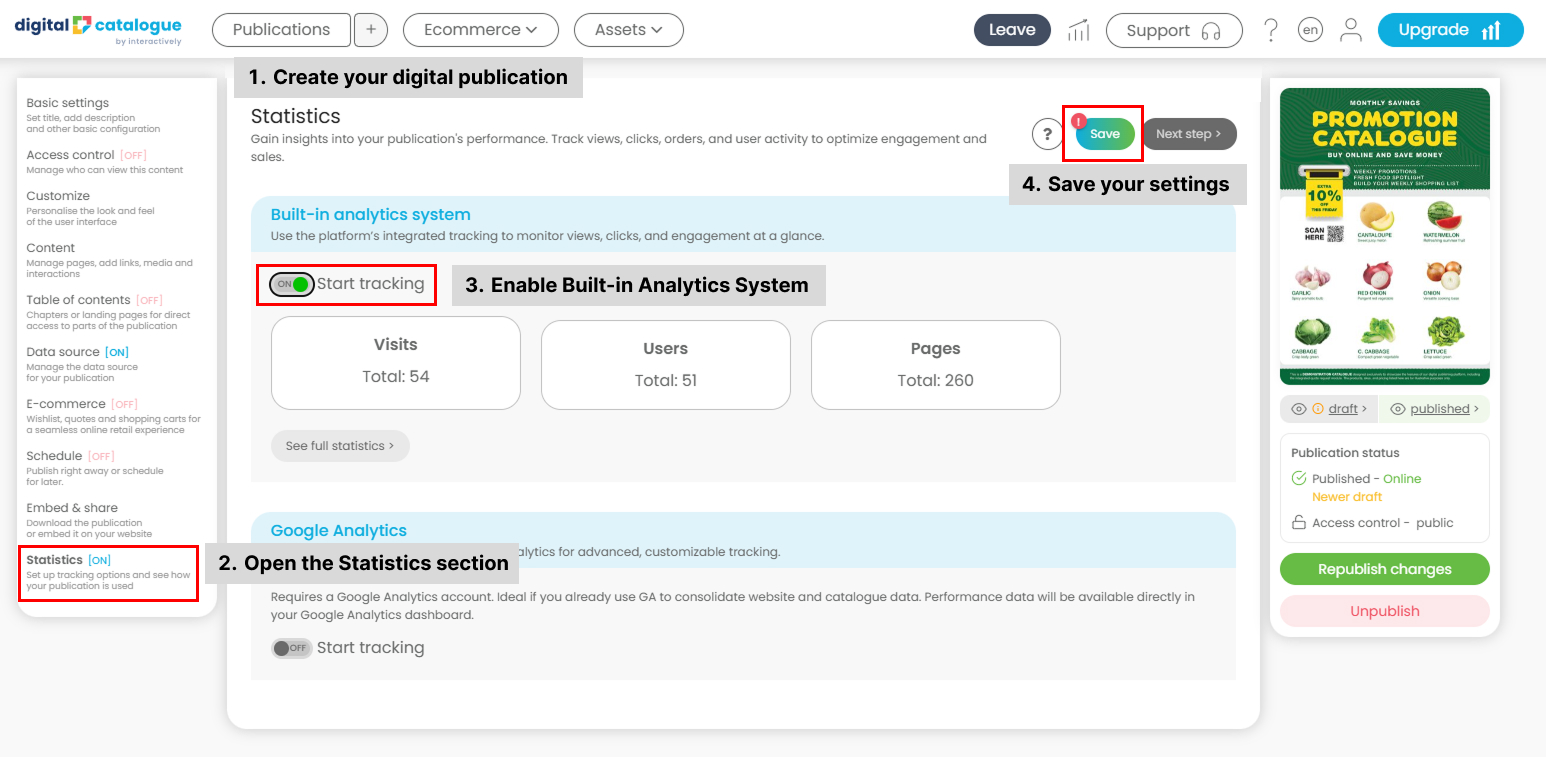
- Built-in Analytics System
Use the platform’s integrated analytics to track views, clicks, and user engagement directly within your publication. The See Full Statistics option provides additional insights, including user engagement and e-commerce performance data.
- Google Analytics
Connect your publication to Google Analytics if you already use GA to manage and consolidate website and catalogue analytics. Performance data will be available in your Google Analytics dashboard. This option requires a GA4 Measurement ID and an active Google Analytics account.
Once your settings are saved, analytics will be enabled and ready to use.
1/ Track performance across your catalogues, shoppable flipbooks, and product grids:
- Page & product views
- User interactions
- Search queries
- Time on page
- Device usage
- Geo data (available when integrated with Google Analytics)
2/ Analyze what drives sales
- Top products
- Average items per purchase
- Average order value
3/ See which suggestions convert best
- Revenue from recommended products
- Orders influenced by suggestions
- Best-performing suggested items