Enabling e-commerce features for seamless order placement in your Digital Catalogues
If you don't have an online store to sell your products directly, our e-commerce feature is here to help.
You can offer a seamless shopping experience to your customers, allowing them to make purchases directly from your Digital Catalogue through e-commerce integration, email, or WhatsApp checkout.
If you haven't created a store yet, simply follow our tutorial here to set it up. Once your store is ready, you can connect it to your Digital Catalogue.
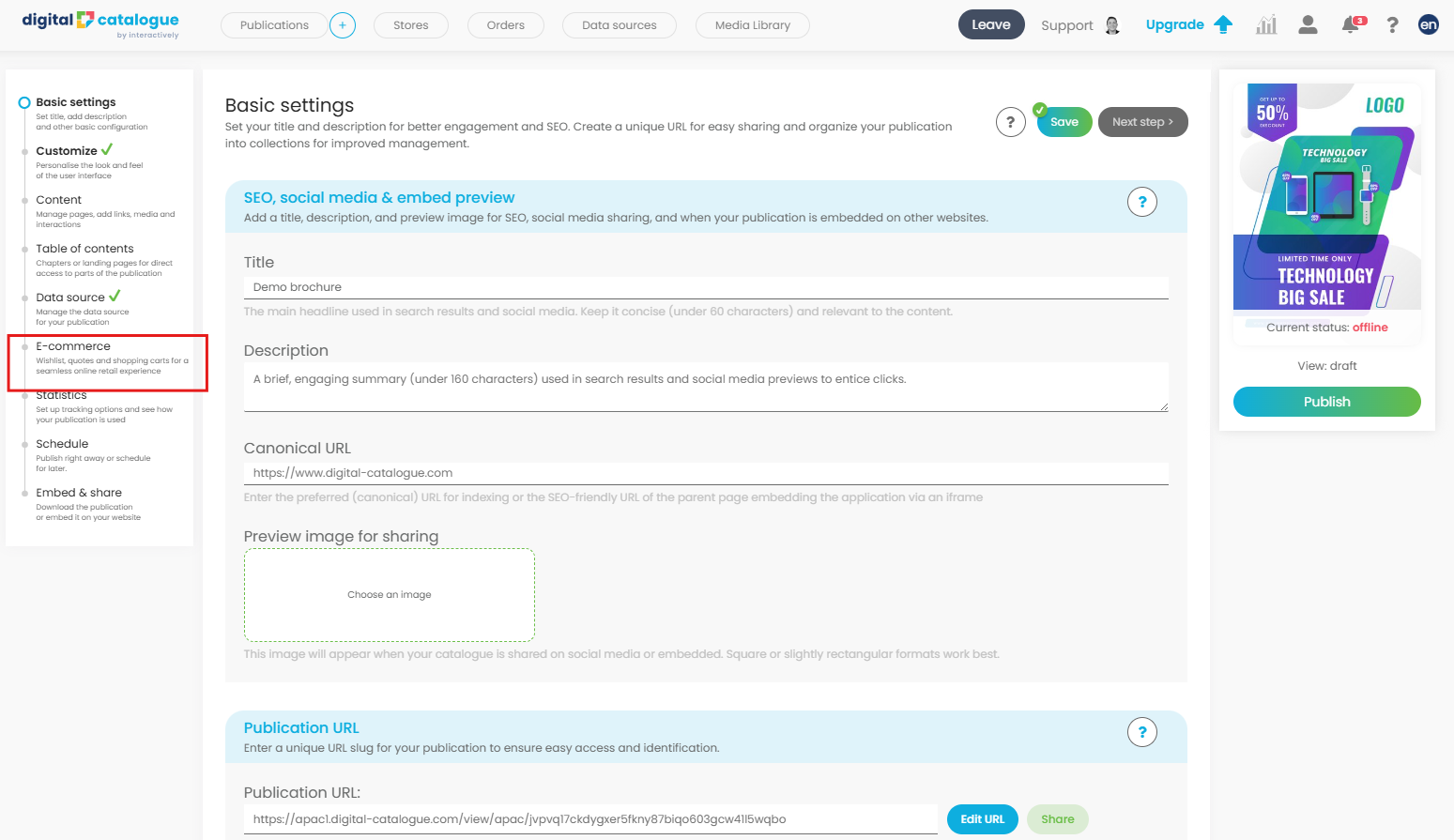
1) Choose your publication, then click on the E-commerce feature from the left-side panel.
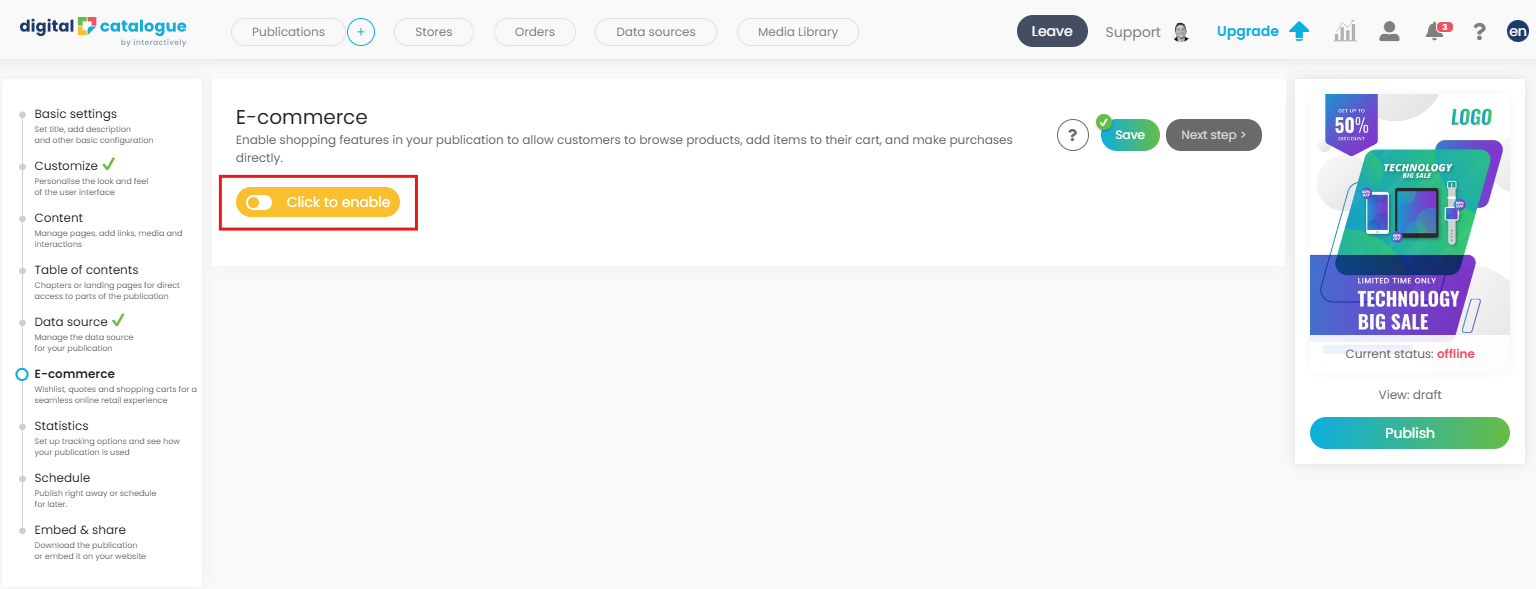
2) Click to enable the feature.
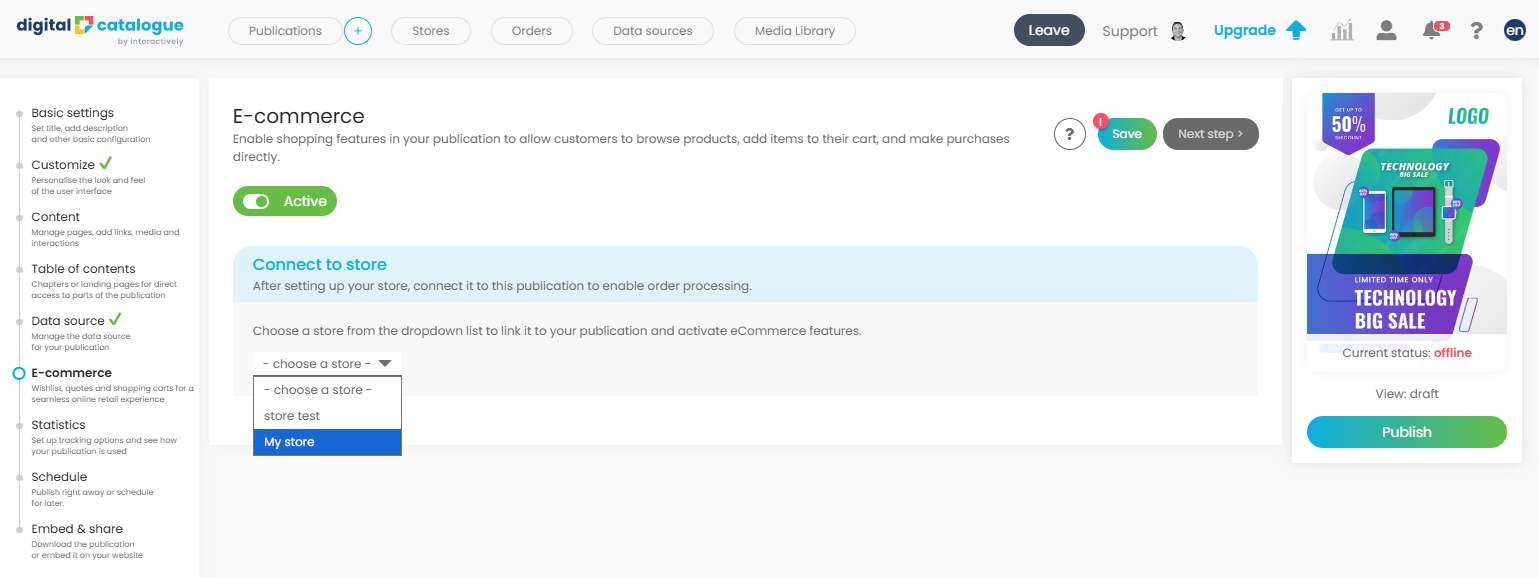
3) Select the store you want to connect.
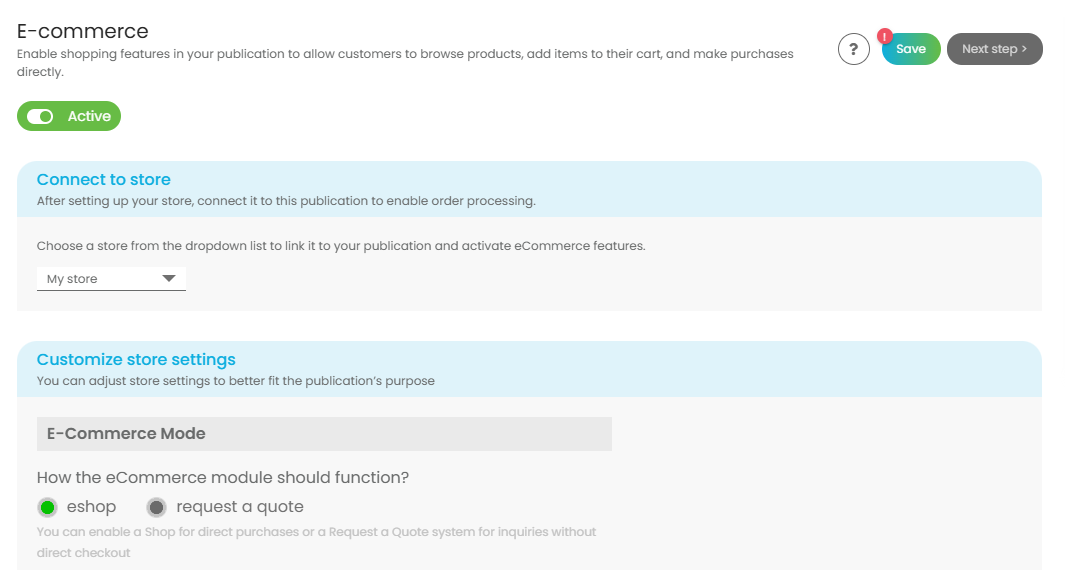
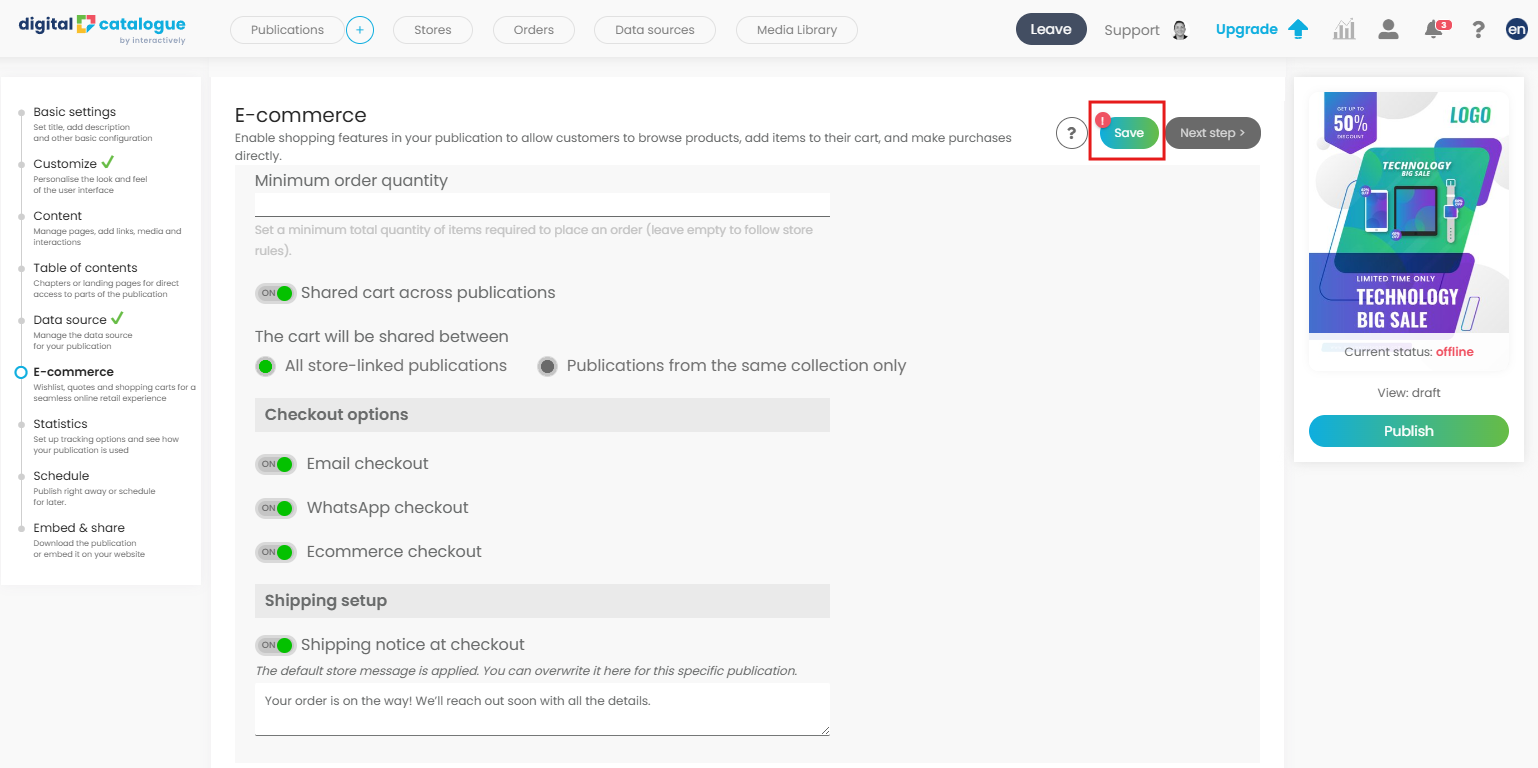
4) Confirm your checkout options. You can also edit them if necessary.
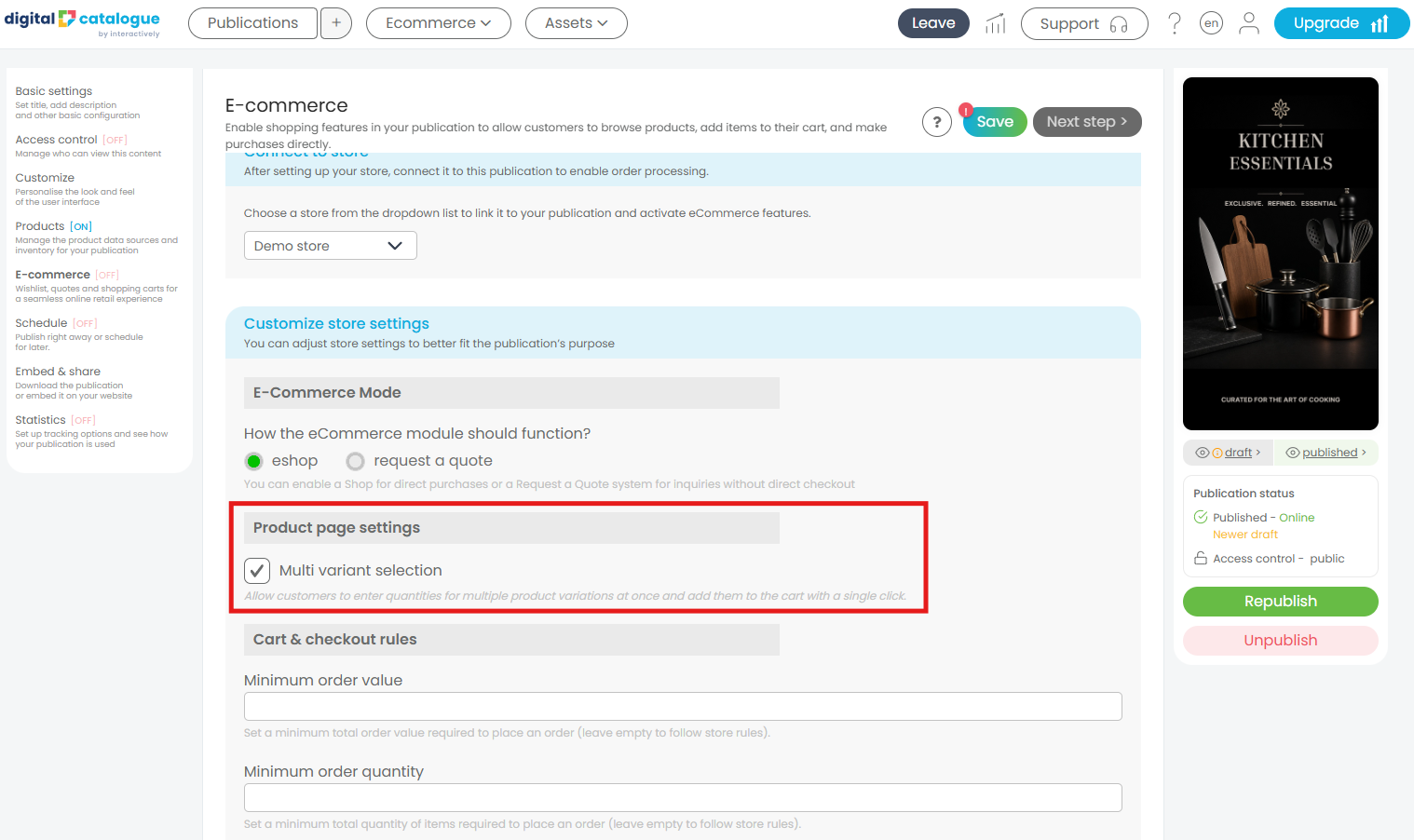
E-Commerce Mode - You can enable a Shop for direct purchases or a Request a Quote system for inquiries without direct checkout.
Product page settings - Enable the Multi-variant selection option to let customers select quantities for multiple product variations (such as sizes, colors, or other options) directly from the product page and add them all to the cart with a single click.
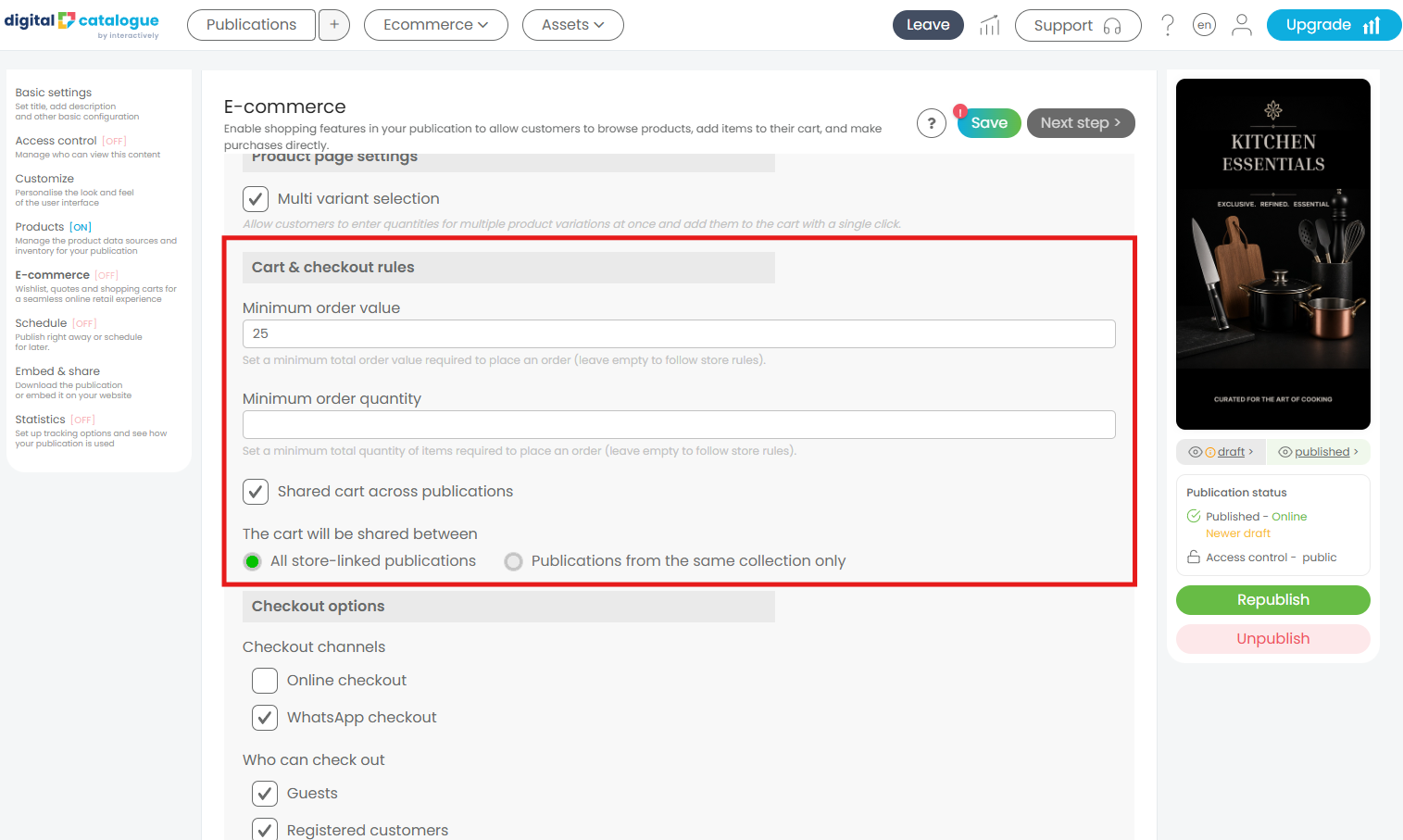
Cart & checkout rules - Set minimum requirements that customers must meet before placing an order:
- Minimum order value: Define the minimum total order amount required to complete a purchase. Leave this field empty to use the default store settings.
- Minimum order quantity: Define the minimum number of items required per order. Leave this field empty to use the default store settings.
Shared cart across publications: Allows customers to add products from different publications to the same shopping cart.
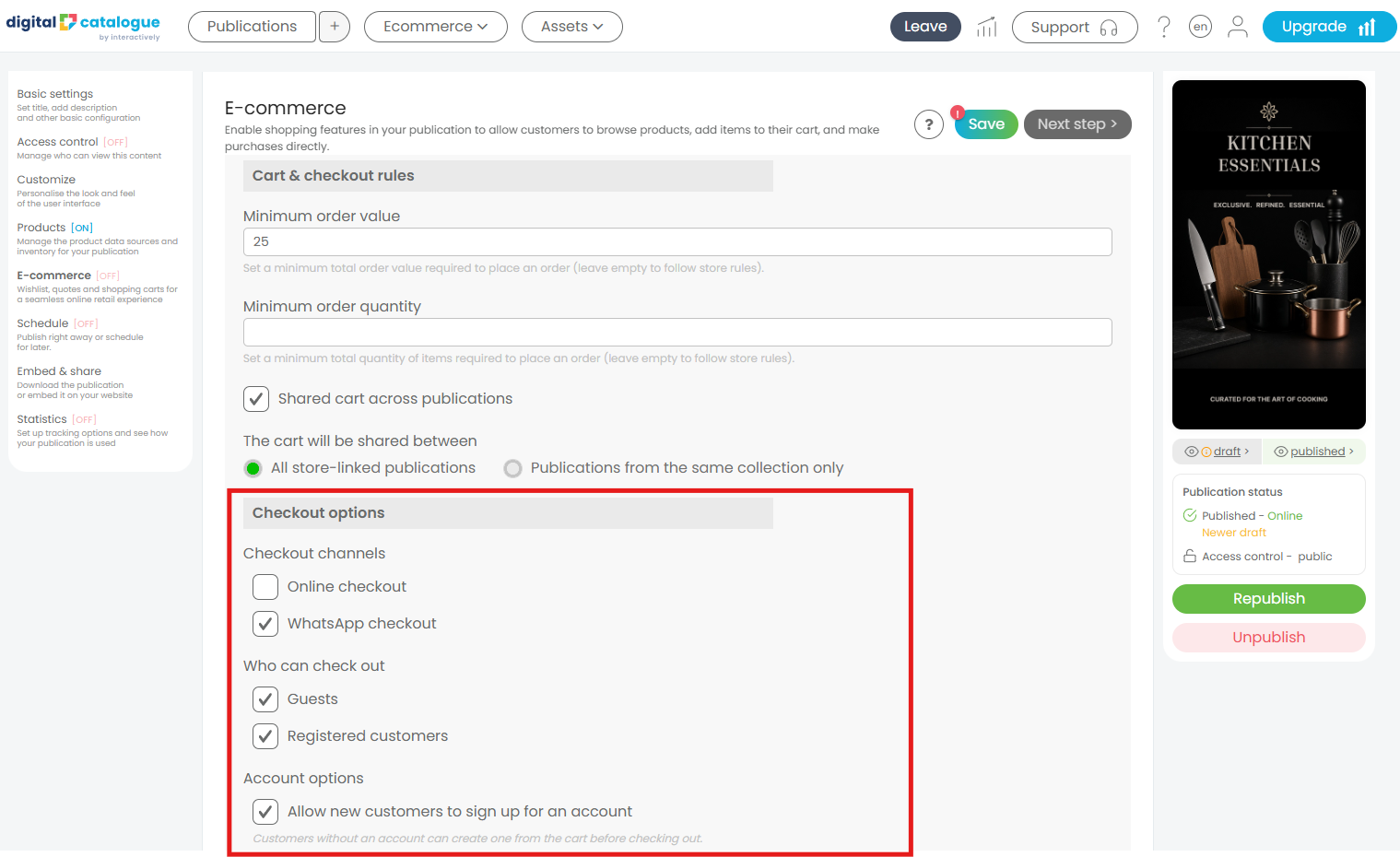
Checkout options - Configure how customers can place their orders:
- Checkout channels: Choose whether customers can complete their orders through the online checkout, WhatsApp, or both.
- Who can check out: Decide whether purchases are available to everyone, including guests, or only to registered customers.
Allow new customers to sign up for an account: Enable this option to let new customers create an account. Customers who don't already have an account can register directly from the cart before proceeding to checkout.
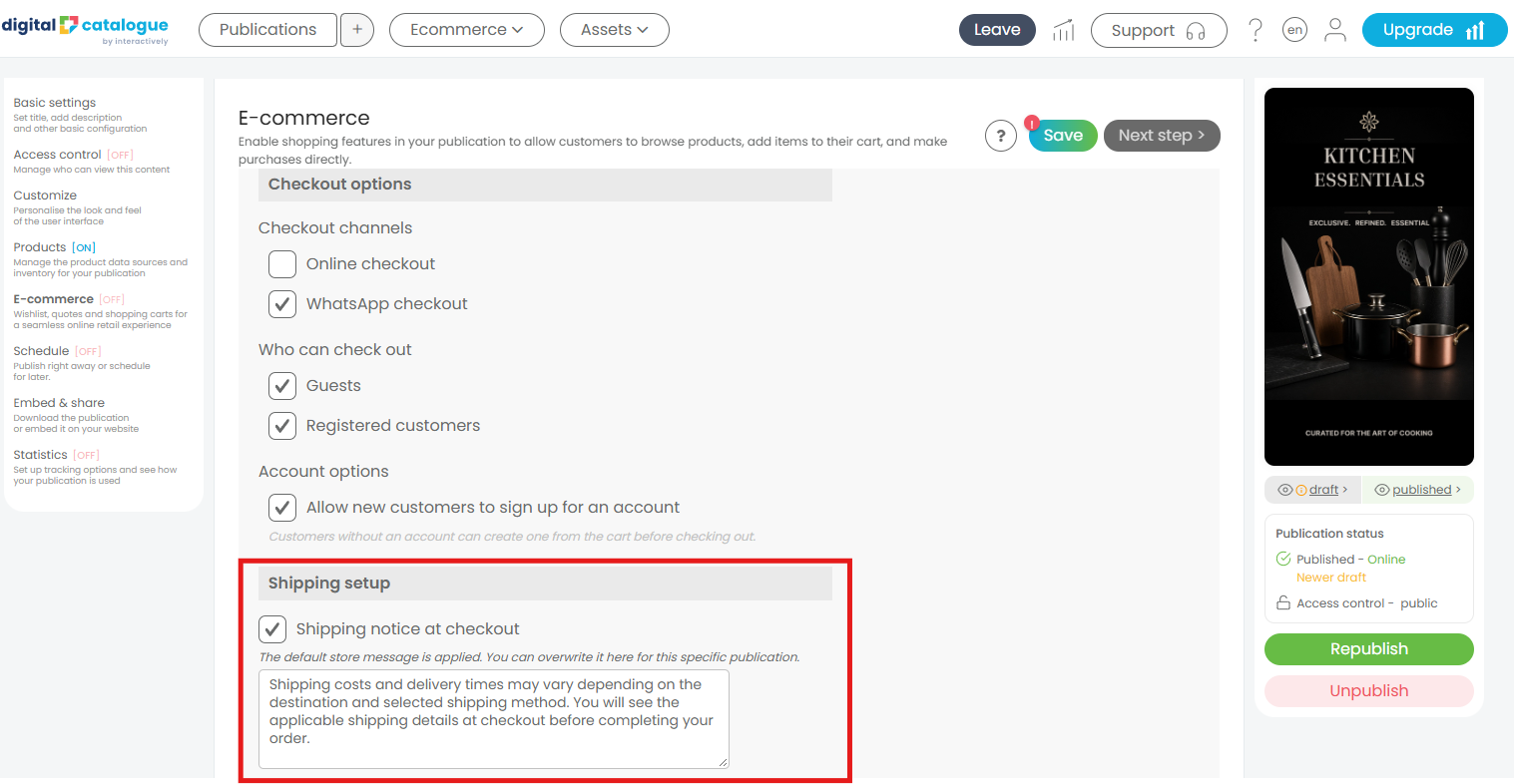
Shipping setup - Shipping notice at checkout
Add a custom shipping message that will be displayed during checkout for this publication. By default, the store's general shipping message is used, but you can overwrite it with a publication-specific notice.
5) Save your changes.
Your store has been successfully connected. Please follow these steps for all publications that require E-commerce integration.