How to add your own Logo
You can personalize your account by uploading a custom logo. The logo will appear in your publications, helping you maintain a consistent and professional brand identity across all materials.
How to Upload Your Branding and Logo
-
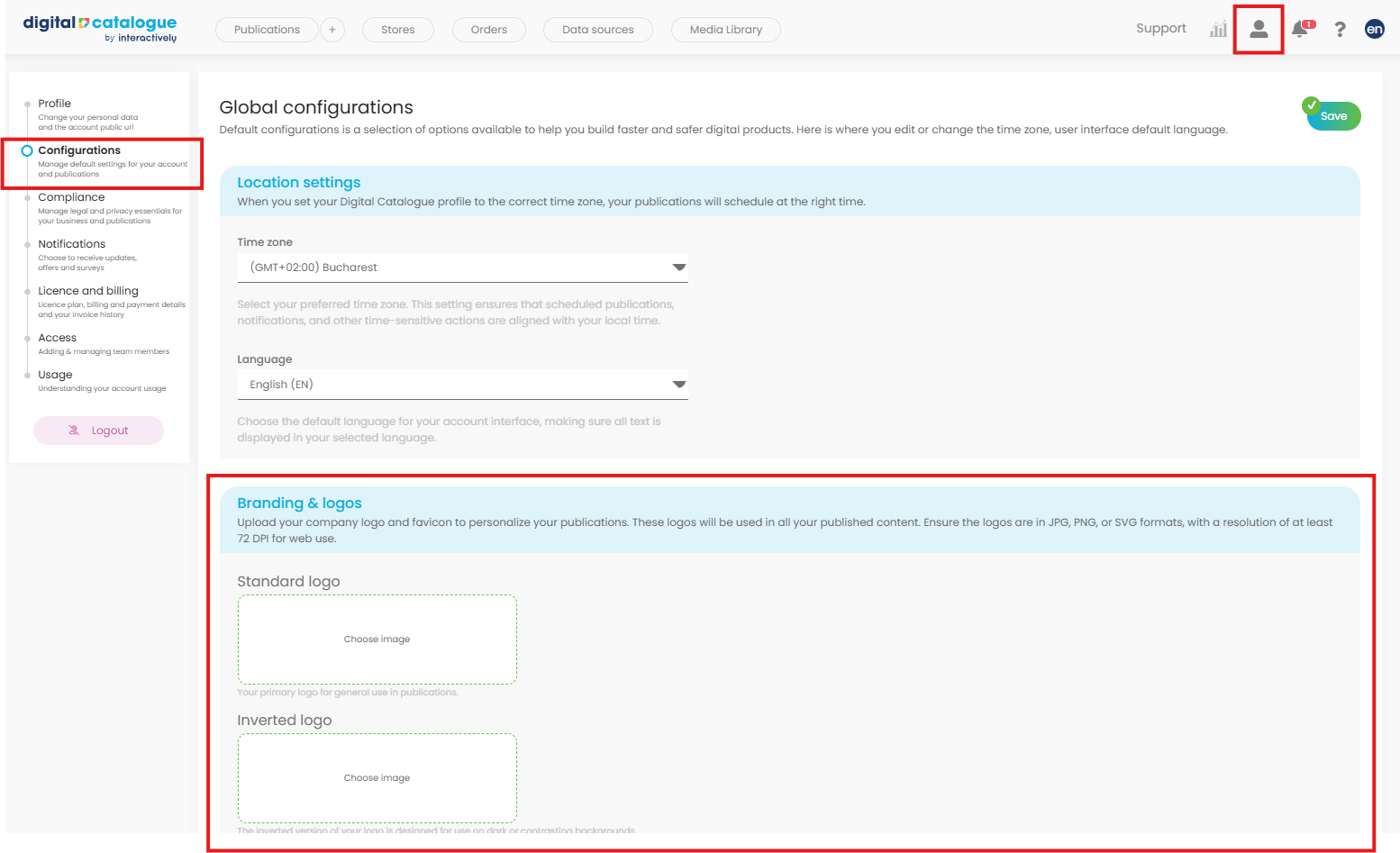
Open Profile Settings
-
From the top menu, select Profile Settings.
-
In the left-side panel, go to Configurations.
-
-
Go to Branding and Logo
-
In this section, you can upload your company logo and favicon to personalize your publications.
-
These will appear across all published content.
-
-
Choose Which Logos to Upload
-
Standard Logo – Your primary logo for general use.
-
Inverted Logo – A light or inverted version for dark backgrounds.
-
Square Logo – A square-shaped version for compact spaces.
-
Inverted Square Logo – A square logo optimized for dark backgrounds.
-
Favicon – A small icon for browser tabs (for quick visual identification).
-
-
File Requirements
-
Formats: JPG, PNG, or SVG
-
Resolution: At least 72 DPI (recommended for web use)
-
-
Upload and Save
-
Select the appropriate file for each logo type.
-
Click Save to apply your changes.
-