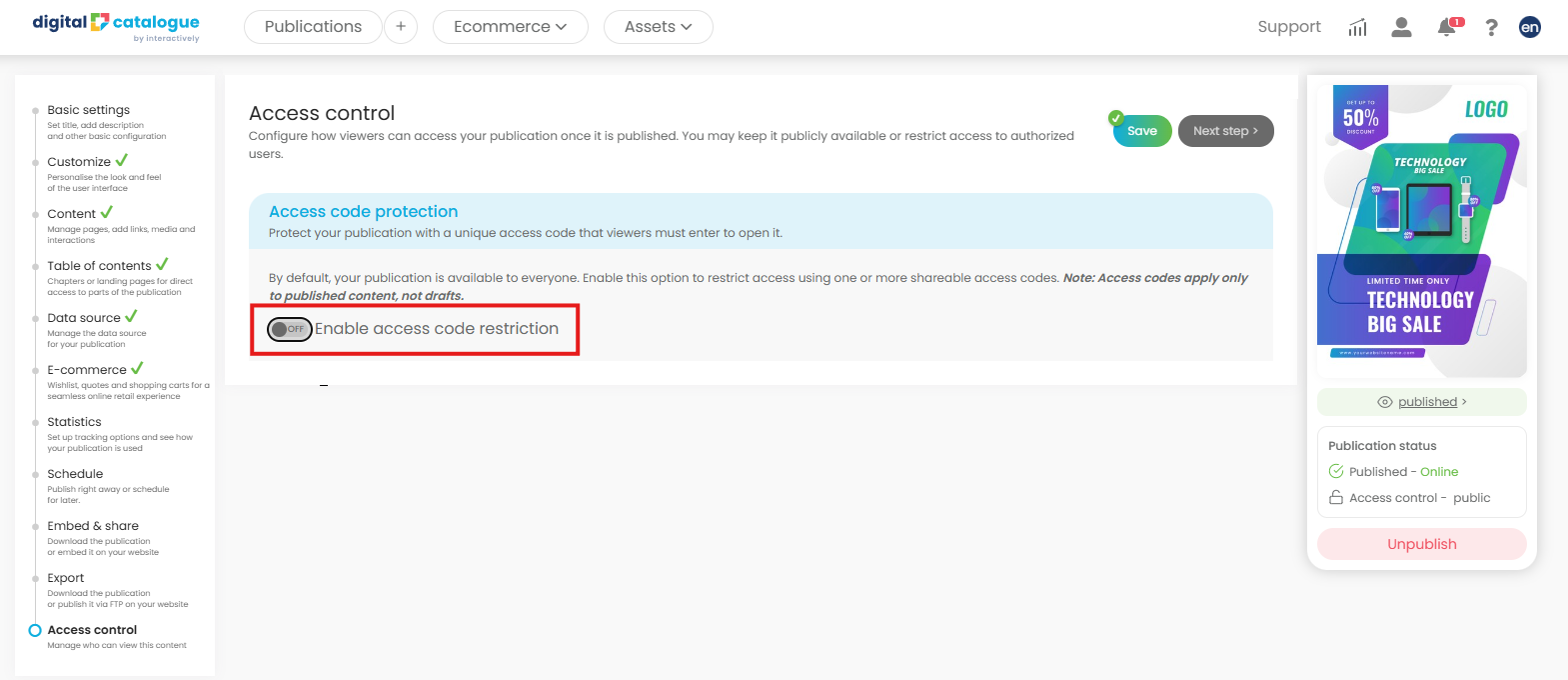
How to enable access code restriction for a publication
Secure your digital publications, flipbooks, and catalogs with access control, and choose exactly who can view them. This feature is ideal for B2B sales teams that need a private, professional way to share digital catalogs.
First, select the publication you’d like to add an access code to from your list. Then, in the left-side menu, click Access Control.
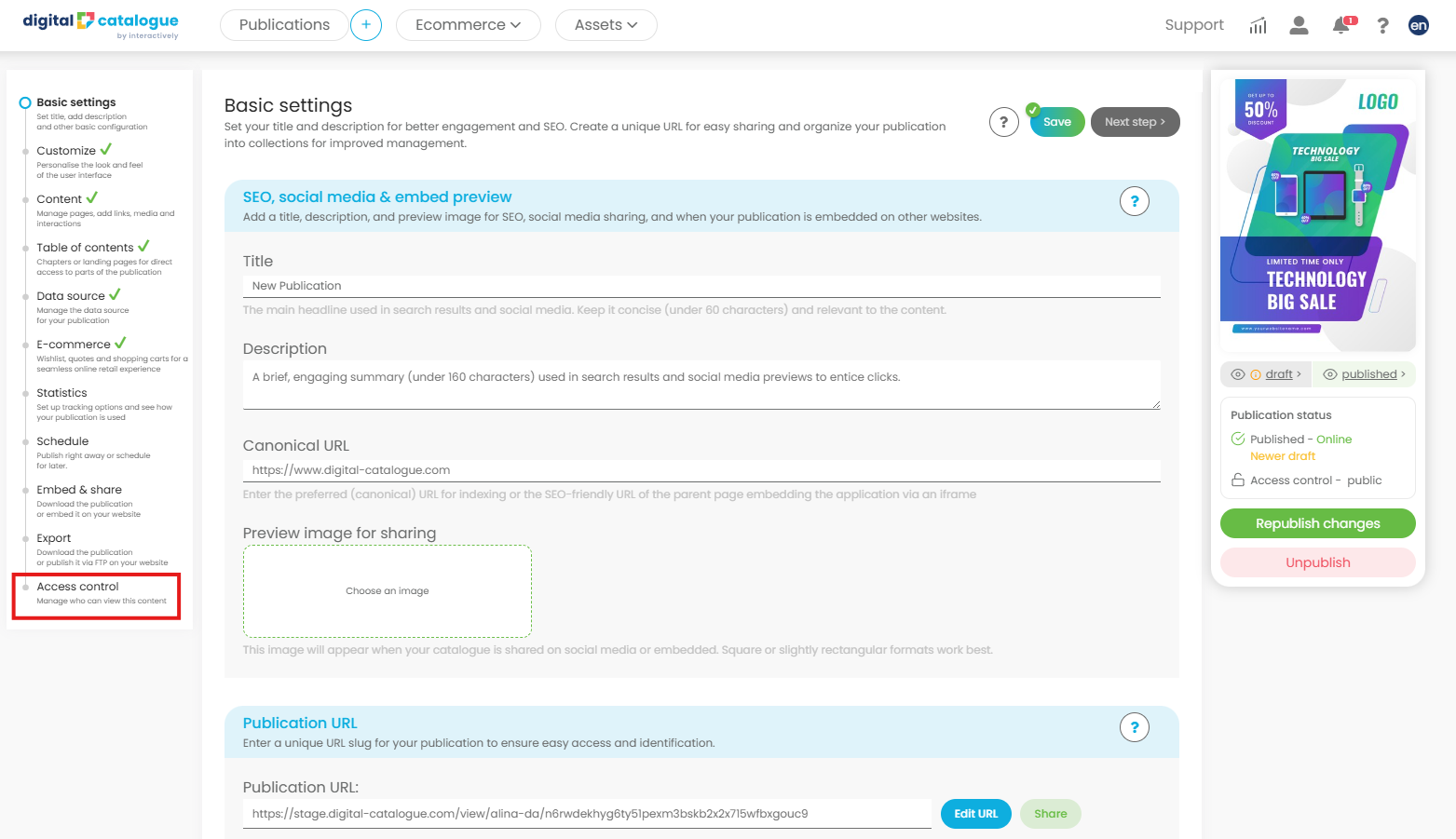
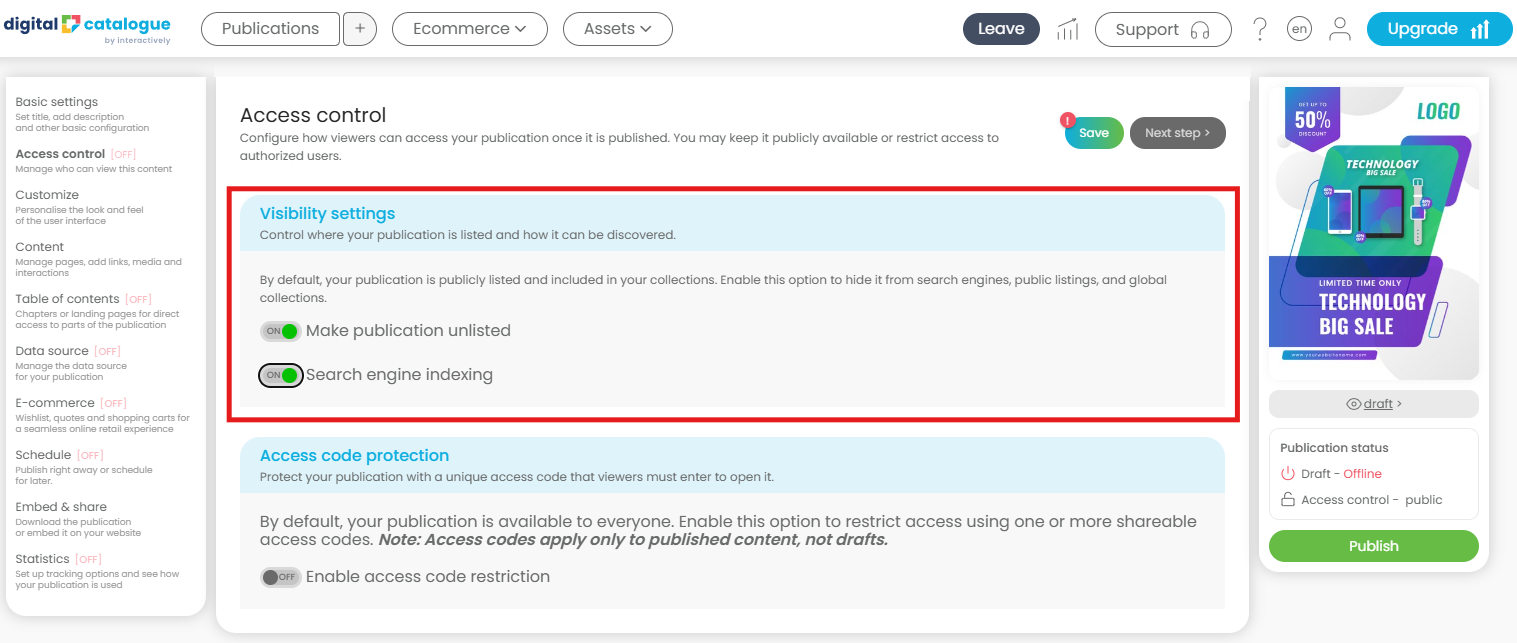
There are two options available:
- Visibility settings. This option gives you more control over how your publication is discovered. Enable it to hide your publication from search engines, public listings, and global collections while keeping it accessible to users with permission.
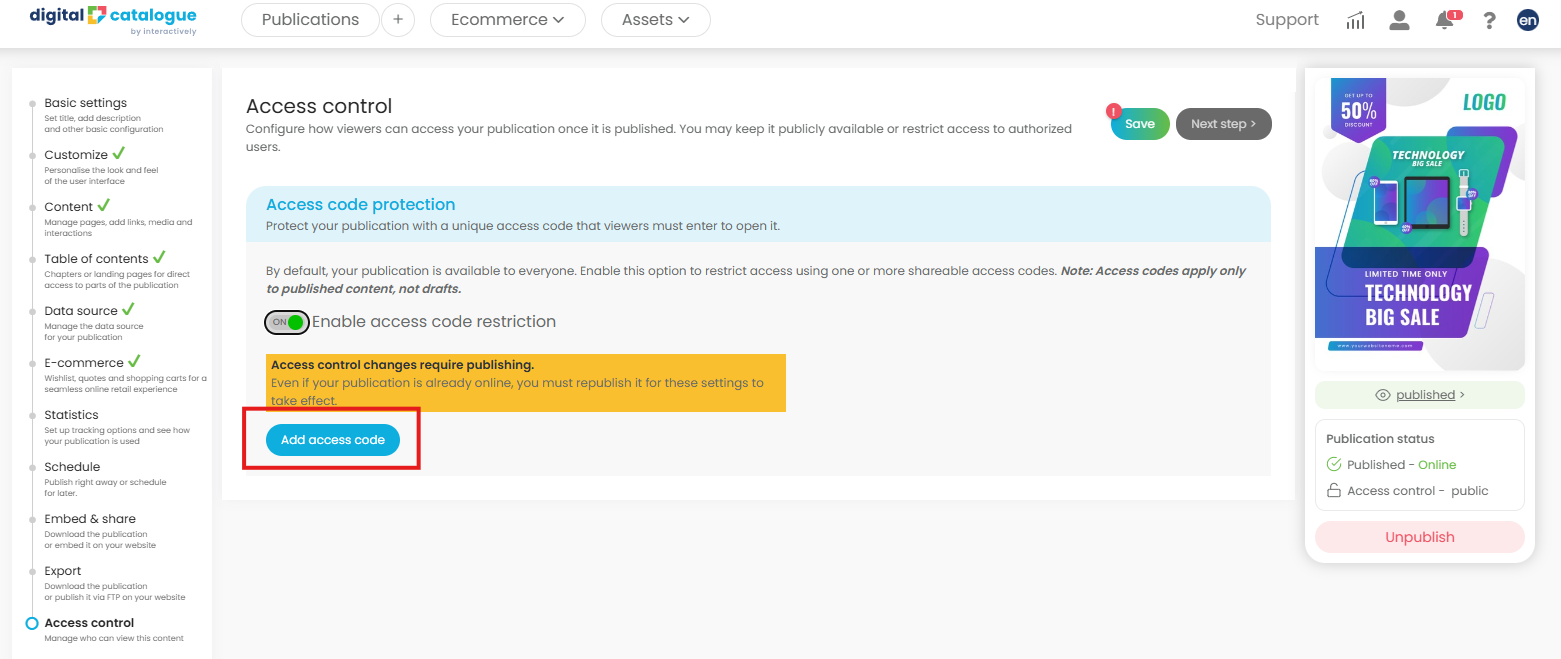
2. Access code protection. Protect your publication with a unique access code that viewers must enter to open it. By default, your publication is available to everyone. Enable this option to restrict access using one or more shareable access codes. Note: Access codes apply only to published content, not drafts.
- Click to enable the setting.
- Then click the Add Access Code button.
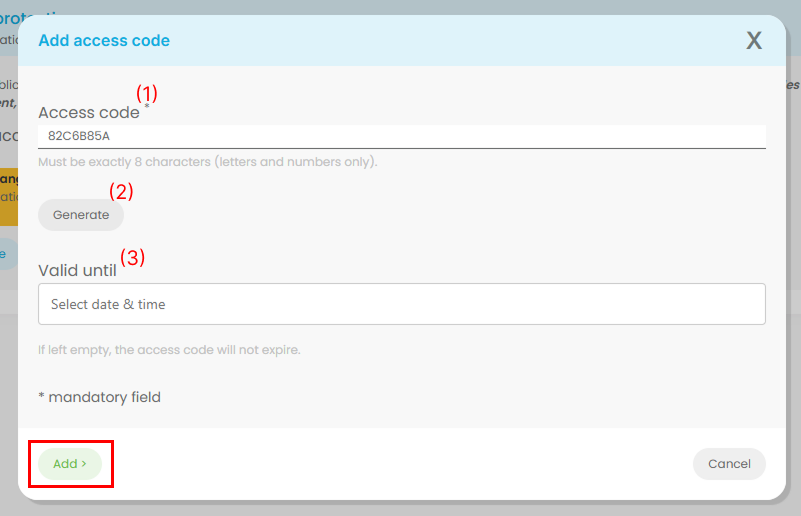
In the prompt, you will have three options:
-
Enter an access code manually. The code must be exactly 8 characters and may include letters and numbers only.
-
Generate an access code automatically. If you previously entered a code manually, it will be replaced.
-
Set an expiration date for the access code. If no date is selected, the access code will not expire.
Once everything is set up, click Add at the bottom.
Your access code will now appear in the list. You can create multiple codes and assign different expiration dates to each one. Once everything is ready, click Save in the top-right corner.
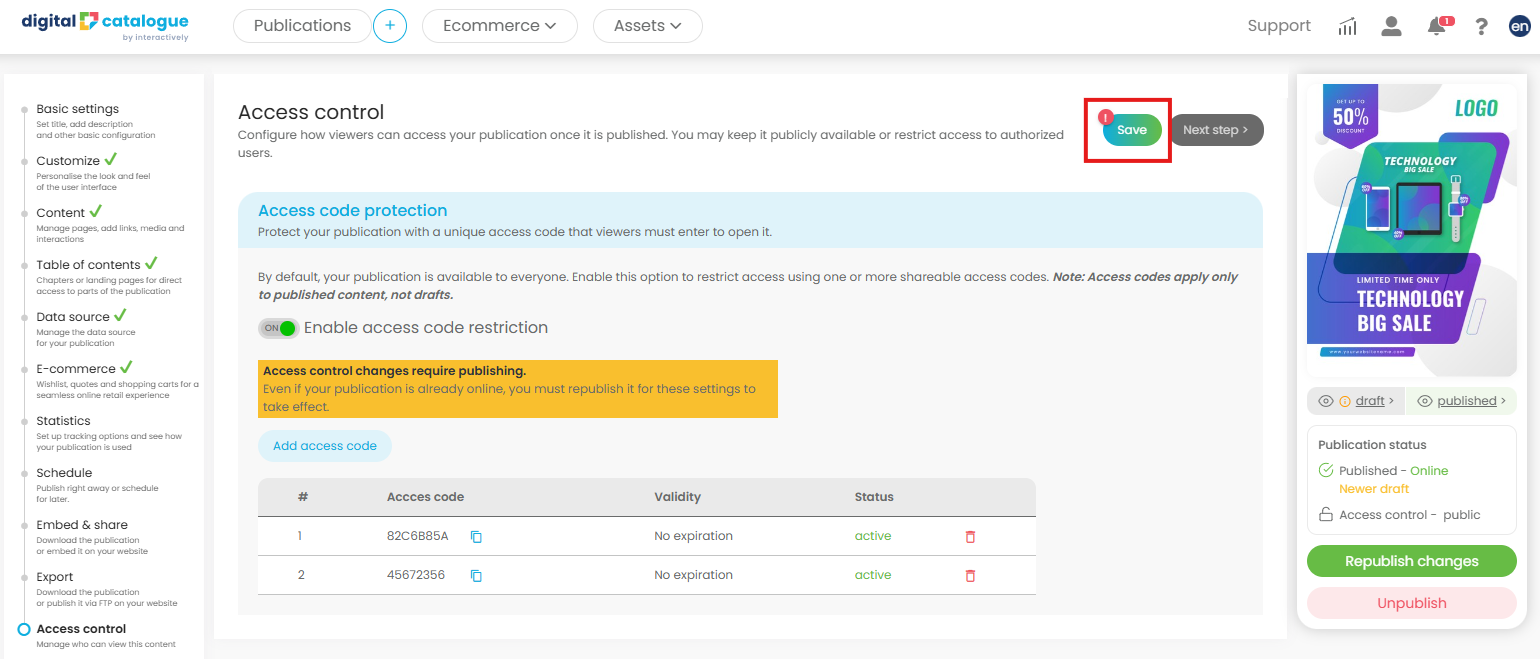
Access control changes require publishing.
Even if your publication is already live, any changes made to access control settings will not take effect until the publication is republished. Be sure to publish again after making your updates so the new access rules are applied correctly.
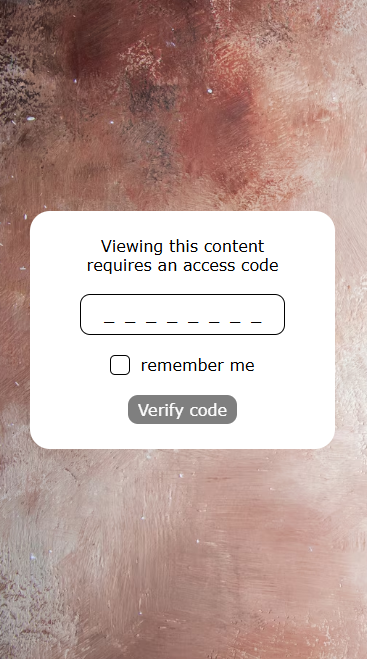
Once you’ve republished your publication, everything is set up and ready to go. When someone clicks the publication link, the access code prompt will appear automatically.
To remove access control, go to the Access Control section and disable the option, then republish your changes.
Deleting all access codes alone will not turn off the access control feature. If you remove every access code but leave the option enabled, your publication will remain private and no one will be able to access it.