Web Components: Overview & Activation
Introducing new Web Components to make your product pages more dynamic and engaging. Easily showcase products with customizable grids, add animations and effects, display countdowns for promotions, and highlight prices with reusable tags. Designed for flexibility, performance, and reusability, these components help you create richer shopping experiences.
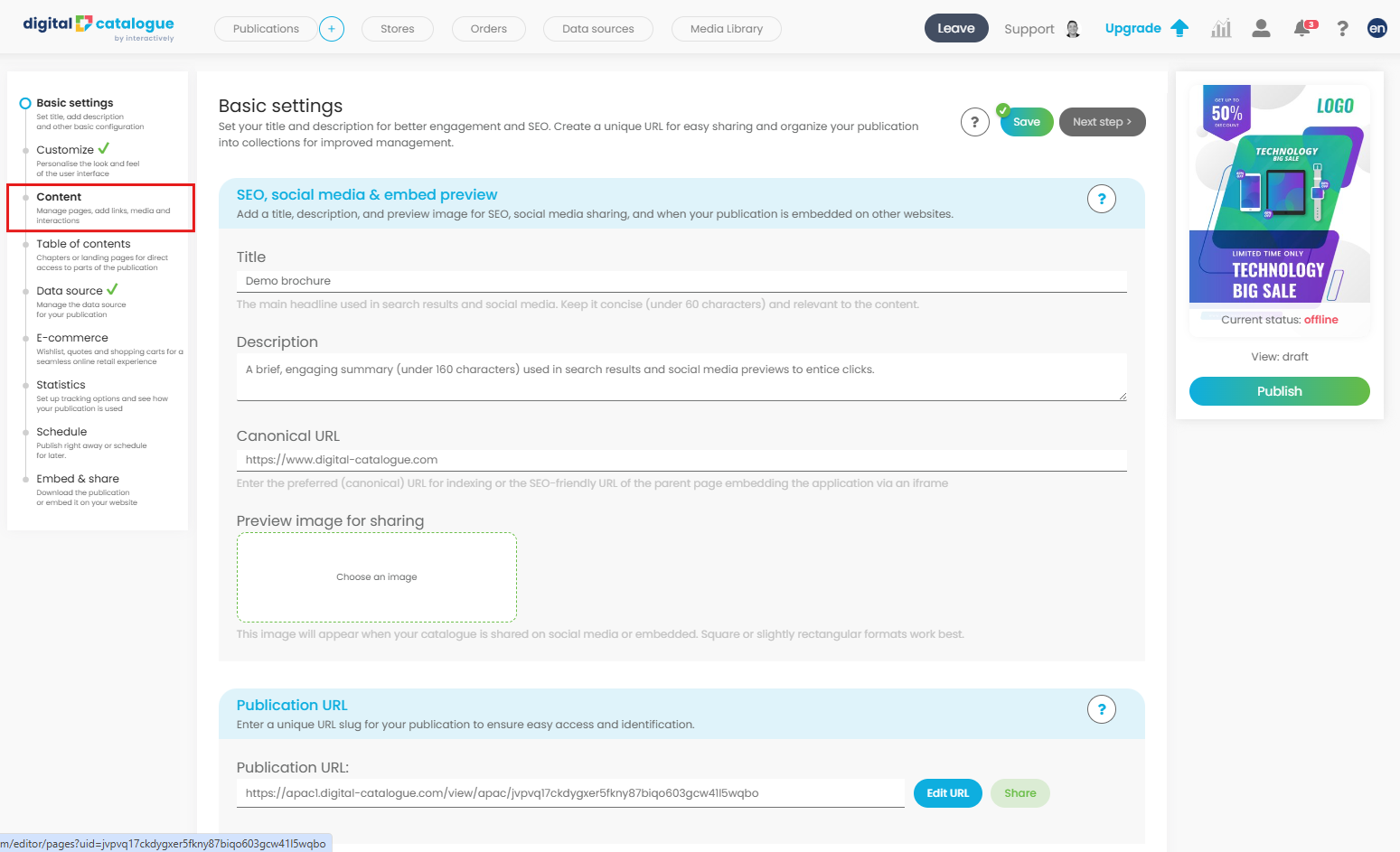
The components are available in the Content section of your publication. To access them, select your publication and click Content in the left-side panel.
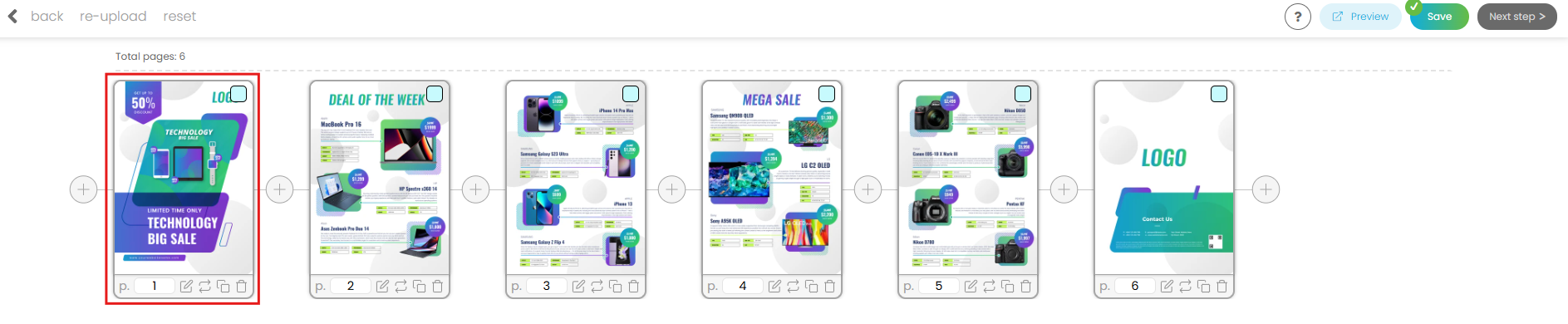
Next, choose the page where you want to add components.
Then, in the left-side panel, click Components.
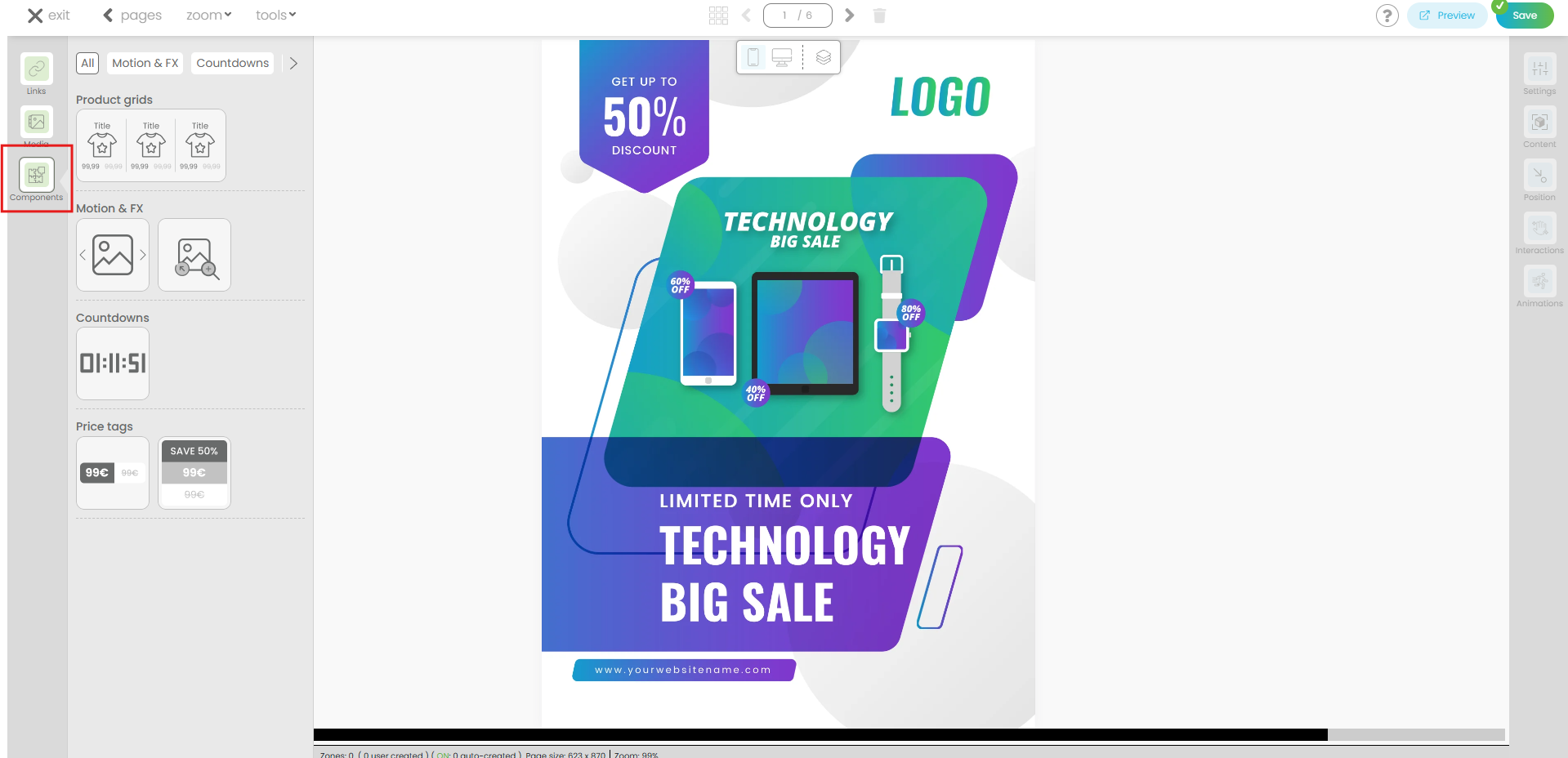
You’ll find four options:
-
Product Grids – Flexible layouts to showcase products
- Single Product - Highlight an individual product with real-time information
-
Motion & FX – Ken Burns image animations and auto-playing image carousels
-
Countdowns – Create urgency for promotions and launches
-
Price Tags – Highlight prices, discounts, and special offers
1. Product Grids
The Product Grids component lets you display products in a single horizontal row with real-time updates. To use it, a data source must be enabled in your publication, as all product information - title, price, and image - is retrieved automatically.
How it works: Simply drag and drop the component from the left-side panel directly onto the page. You can then adjust its position and configure settings in the right-side panel, including layout, typography, colors, and product display options.
Key Benefits:
-
Dynamic & up-to-date: Shows real-time product info from your data source.
-
Customizable design: Adjust layout, typography, and colors to match your branding.
-
Add extra content: Include additional information not available in your PDF file.
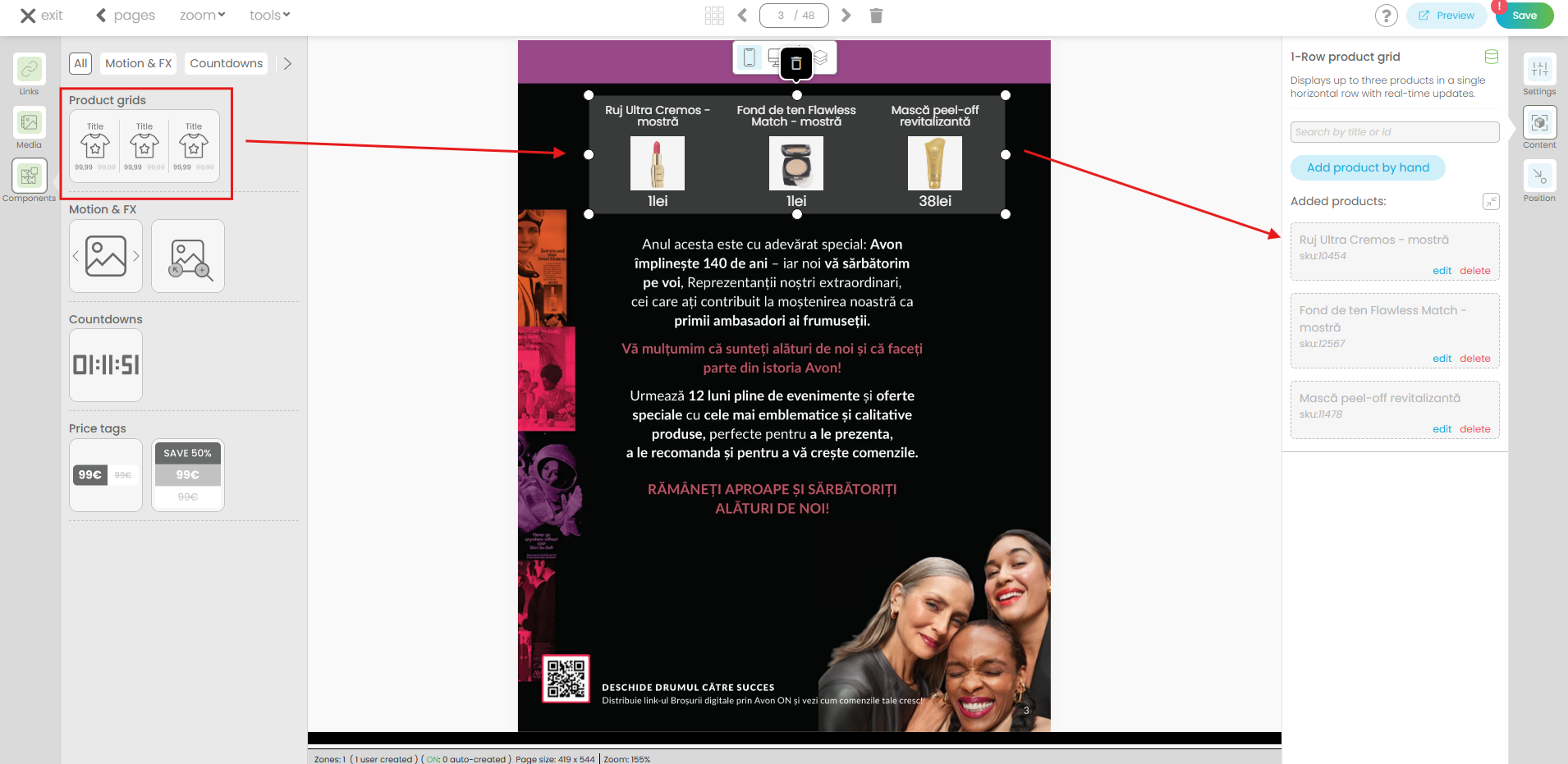
This component makes it easy to create visually appealing, flexible, and informative product displays that enhance the shopping experience.
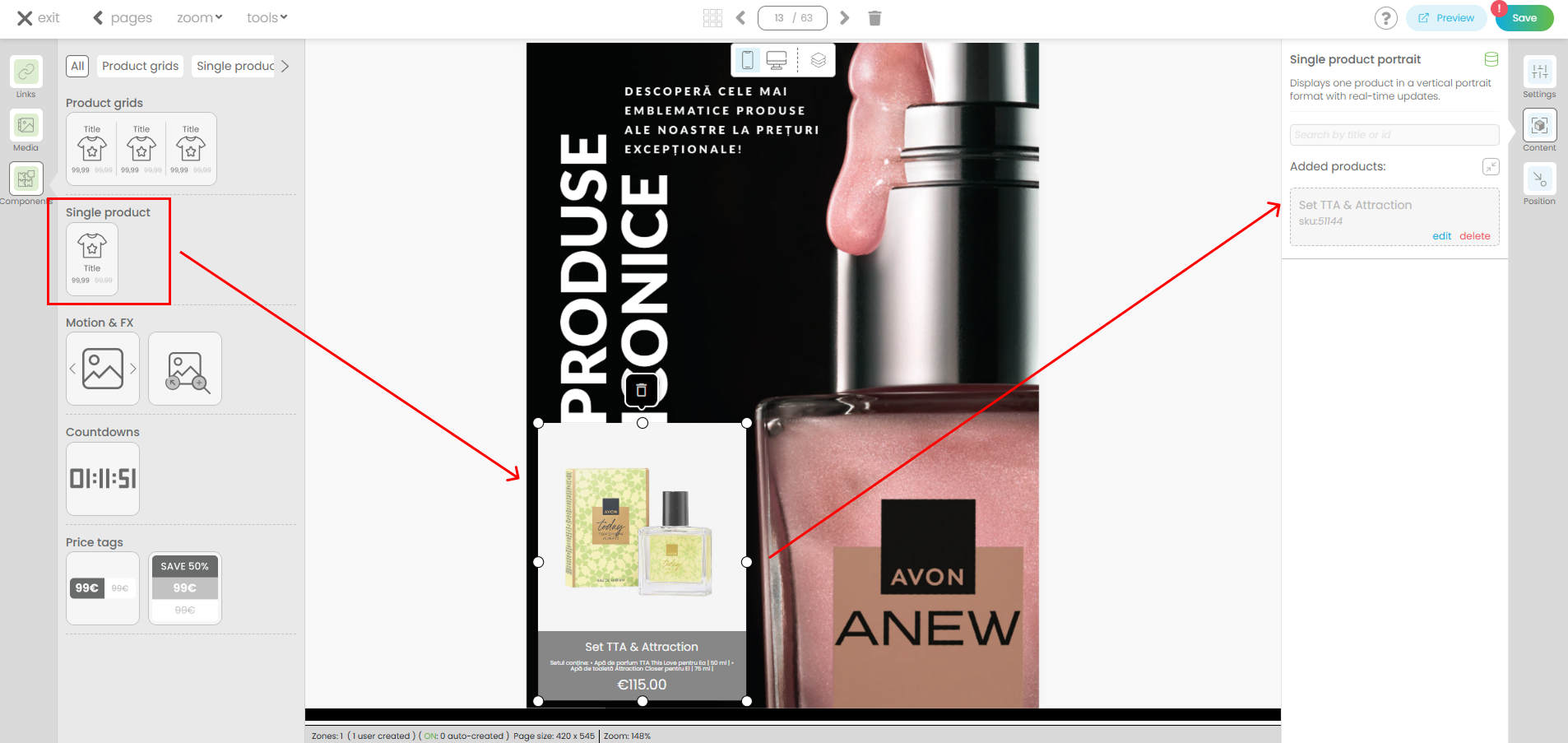
2. Single Product
The Single Product component lets you highlight an individual product with real-time information from your connected data source. Product details such as the title, price, image, and other available attributes are retrieved automatically, ensuring the displayed information is always up to date.
How it works: Simply drag and drop the component from the left-side panel onto the page. Select the desired product from your connected data source, then customize its appearance using the settings in the right-side panel, including layout, typography, colors, and the product information to display.
Key Benefits:
- Real-time product data: Automatically displays the latest product information from your data source.
-
Fully customizable: Tailor the layout, typography, colors, and displayed fields to match your publication design.
-
Highlight featured products: Showcase a specific product anywhere in your publication without relying on the PDF content.
- Flexible content: Display additional product information that isn't available in the original PDF, such as descriptions, promotional text, or dynamic pricing.
3. Motion & FX
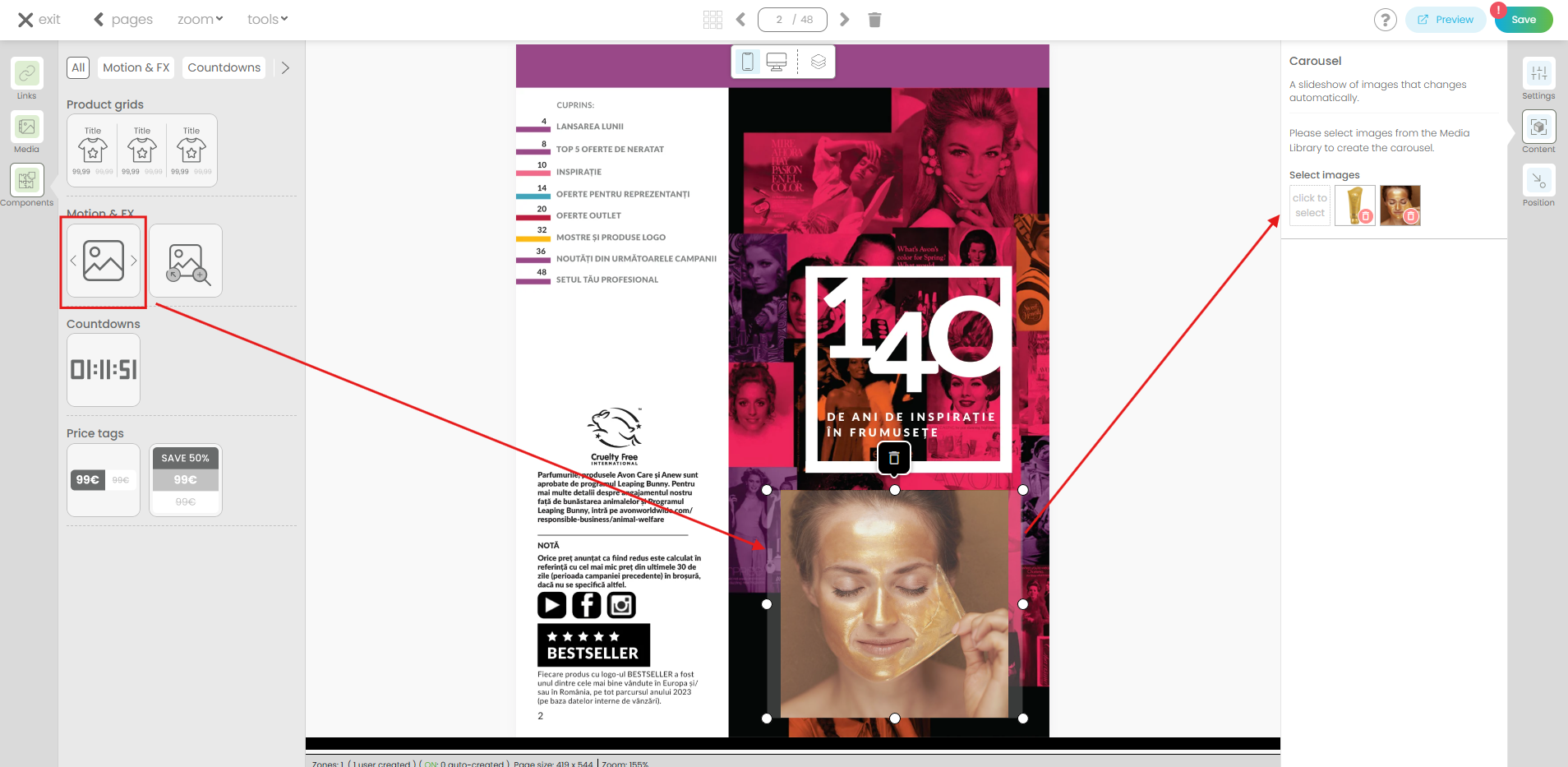
The Motion & FX component lets you add dynamic visual content to your publication, enhancing engagement and creating a more cinematic experience. It includes two options:
-
Carousel – A slideshow of images that changes automatically. Select images from the Media Library to create the carousel.
-
Kenburn Image Animation – A cinematic slow pan and zoom effect on a still image. Select an image from the Media Library to create the animation.
How it works: Simply drag and drop the component from the left-side panel directly onto the page. You are then redirected to Content, where you can select images from the Media Library. Next, configure settings in the right-side panel:
-
Carousel settings: Animation type (fade or slide), duration, transition time (seconds), and toggle Infinite Loop.
-
Kenburn settings: Display duration, start delay (seconds), repeat count, and toggle Infinite Loop.
Key Benefits:
-
Dynamic visual content: Add slideshows or cinematic animations to capture attention.
-
Customizable animations: Control timing, transitions, and looping to match your design.
-
Works with images from the Media Library, allowing you to add content beyond your PDF files.
The Motion & FX component makes it easy to create visually engaging, interactive content that enhances your pages and draws user attention.
4. Countdowns
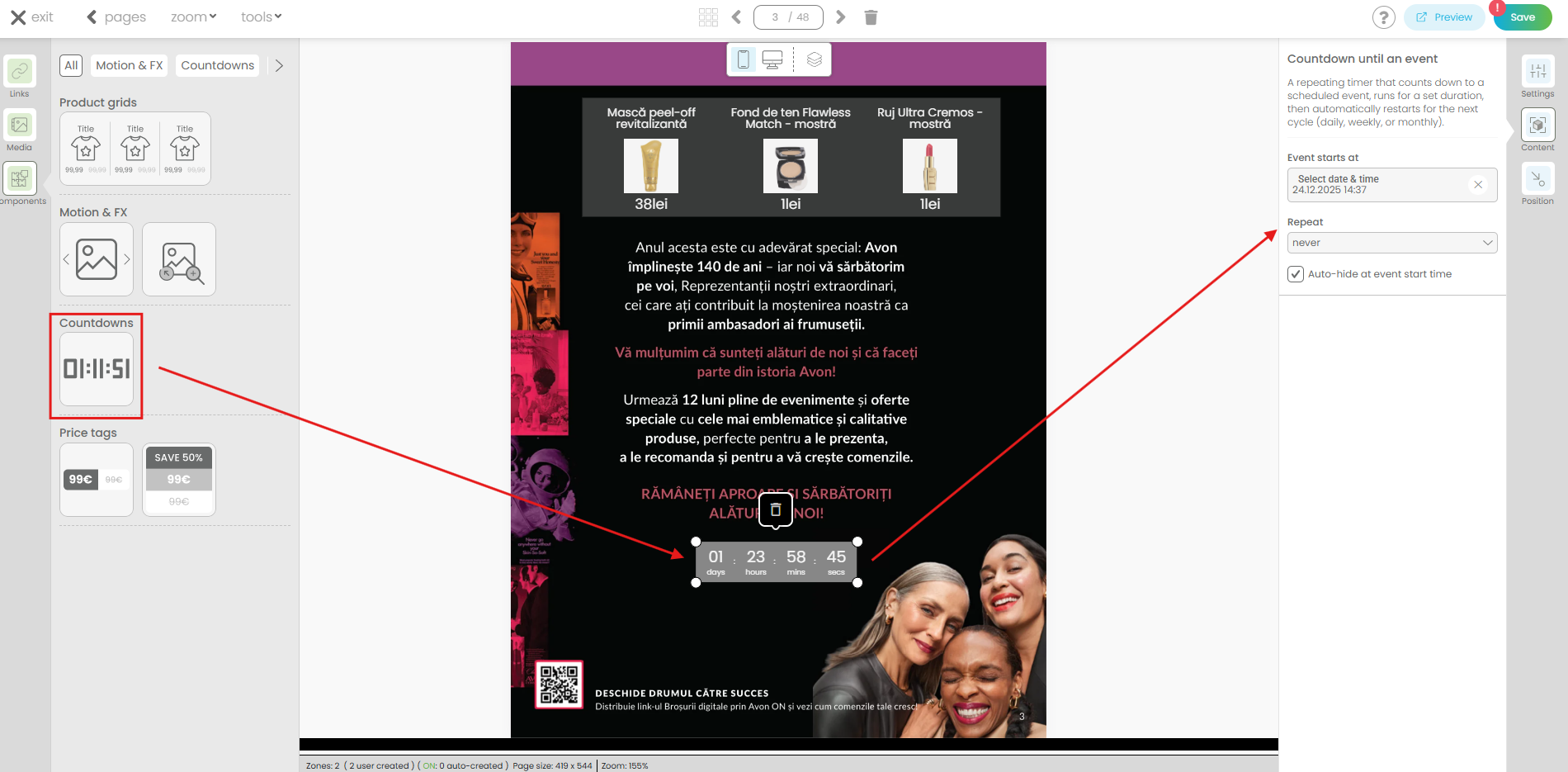
The Countdowns component lets you create dynamic timers to build urgency for events, promotions, or launches. It includes a repeating timer that counts down to a scheduled event and automatically restarts for the next cycle (daily, weekly, or monthly).
How it works: Simply drag and drop the component from the left-side panel directly onto the page. You are then redirected to Content, where you can set the event details:
-
Event starts at – Choose the date and time the countdown begins
-
Repeat – Select the cycle: Never, Daily, Weekly, or Monthly
-
Auto-hide – Optionally hide the countdown when the event starts
Next, configure additional settings in the right-side panel:
-
Display: Choose compact layout, include/exclude days, show only hours/minutes/seconds, and set corner radius
-
Typography: Select font and text format
-
Colors: Set text and background colors
Key Benefits:
-
Create urgency: Encourage user engagement and conversions with visually dynamic countdowns
-
Flexible timing: Set custom start times, repetition cycles, and auto-hide behavior
-
Customizable design: Adjust display, typography, and colors to match your branding
The Countdowns component makes it easy to add interactive, attention-grabbing timers that enhance the shopping experience and highlight key events.
5. Price Tags
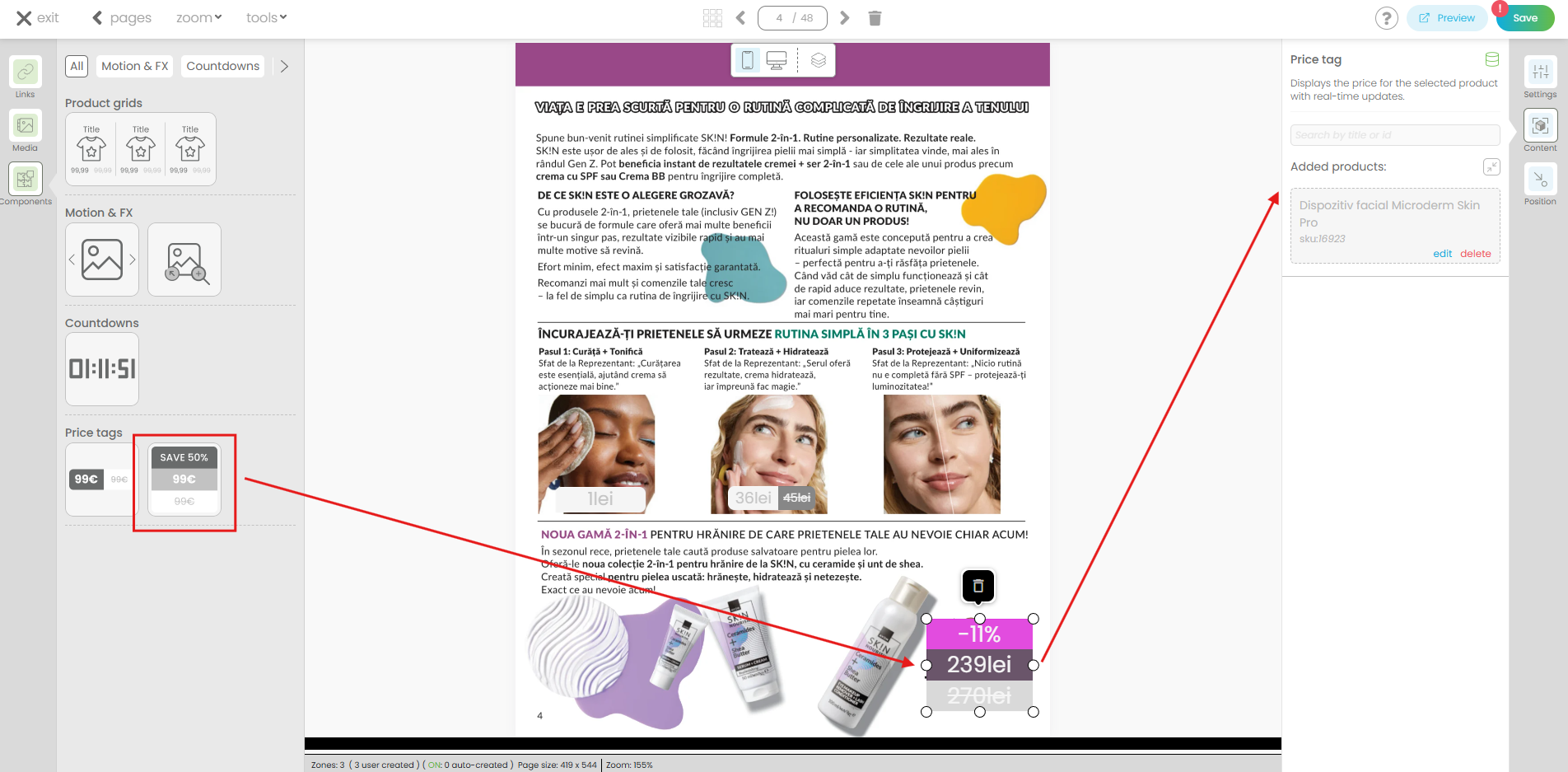
The Price Tags component lets you display the pricing information for a selected product with real-time updates. Once a product is added as the input, the system automatically fills in the selling price, regular price, and any available discount—no manual updates required.
How it works:
Simply drag and drop the component from the left-side panel onto the page. Add a product in the input, and the component will instantly retrieve and display the latest pricing data. You can then customize its appearance using the settings in the right-side panel:
-
Display: Adjust layout and visibility options
-
Corner radius: Customize the shape of the price tag
-
Typography: Choose font and text styling
-
Colors: Set overall color styles
-
Regular price text & background: Style the original price
-
Selling price text & background: Highlight the current price
Key Benefits:
-
Real-time pricing: Automatically reflects current selling price, regular price, and discounts
-
Effortless setup: Select a product and let the system handle pricing details
-
Customizable design: Fully style text, backgrounds, and layout to match your branding
The Price Tags component makes it easy to showcase accurate, up-to-date pricing in a clear and visually appealing way, helping customers quickly understand value and savings.