How to enable a Digital Library (Landing Page)
Create a branded, user-friendly landing page that showcases your brochures, catalogs, flipbooks, and other publications - all in one place. This feature is available starting with the Advanced license.
Step 1: Open Profile Settings
-
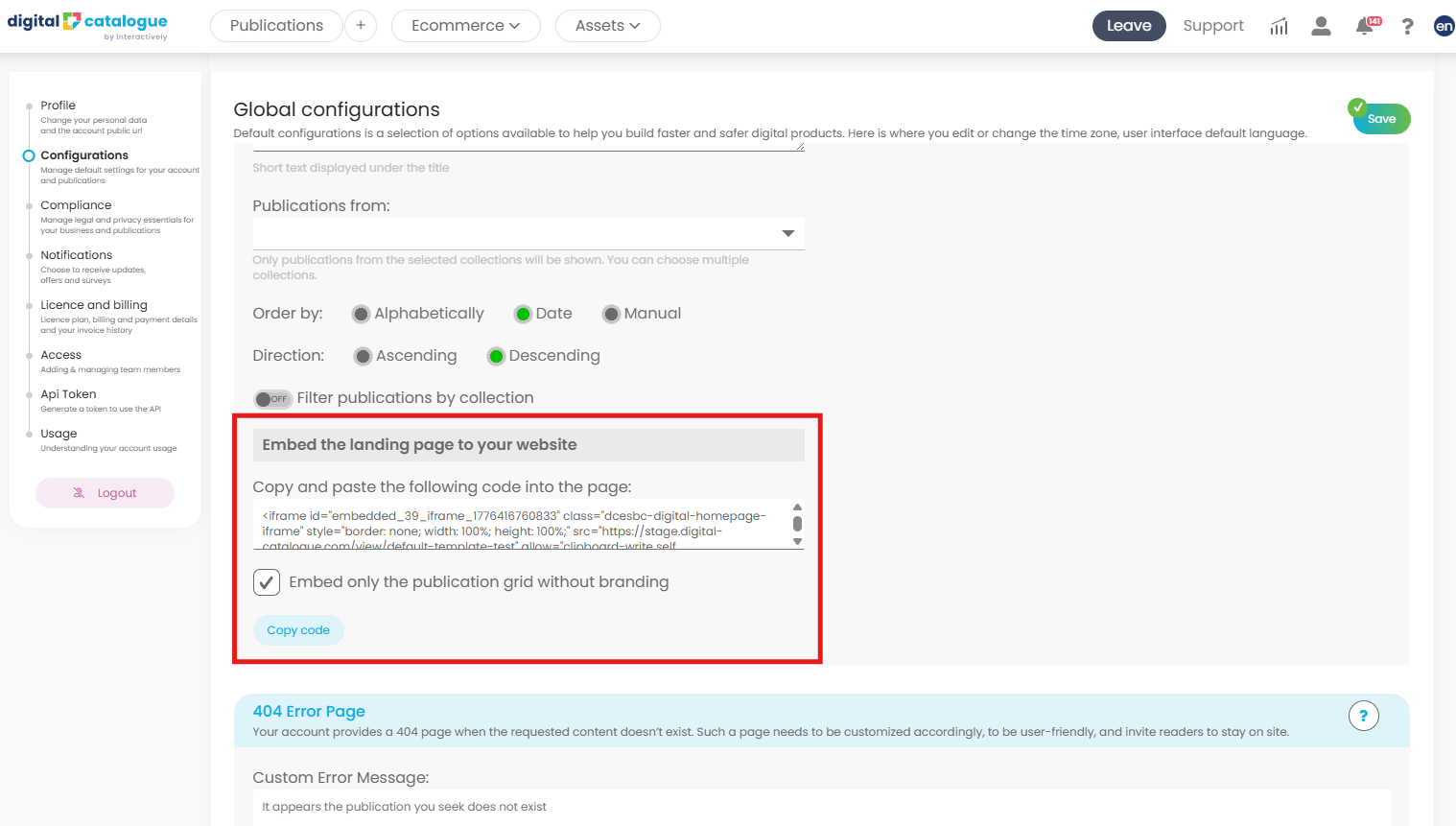
From the top navigation menu, click on Profile Settings.
-
In the left-hand panel, select Configurations.
Step 2: Configure Your Homepage
-
Scroll down to Homepage Settings.
-
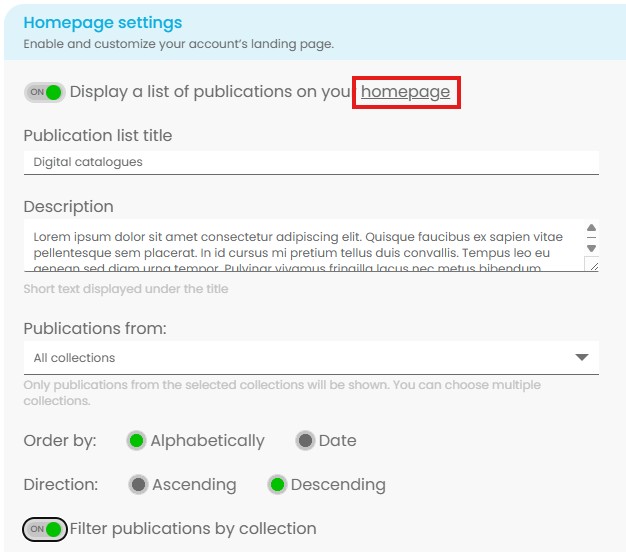
Toggle ON the option labeled:
“Display a list of publications on your homepage.” -
Add a title and description for your digital library - make it inviting and informative!
-
Choose the publications you’d like to display. You can select from multiple collections.
-
Set the order of publications:
-
Alphabetically
-
By Date
-
-
(Optional) Toggle ON the option to filter by collection - perfect if you have several brochures or product lines.
-
The logo displayed on your landing page is the one configured in your account settings. If you haven’t uploaded a custom logo yet, the system will display the default Digital-catalogue logo instead.
Need help uploading your logo? Check out our tutorial: [How to Add Your Own Logo].
Step 3: Access Your Digital Library
Once enabled, your Digital Library (landing page) is live.
Click the underlined homepage link to view and share your new branded page.
Step 4: Save Your Settings
Don’t forget to hit Save!
You can return and update your homepage settings at any time.
Step 5: Embed the landing page to your website
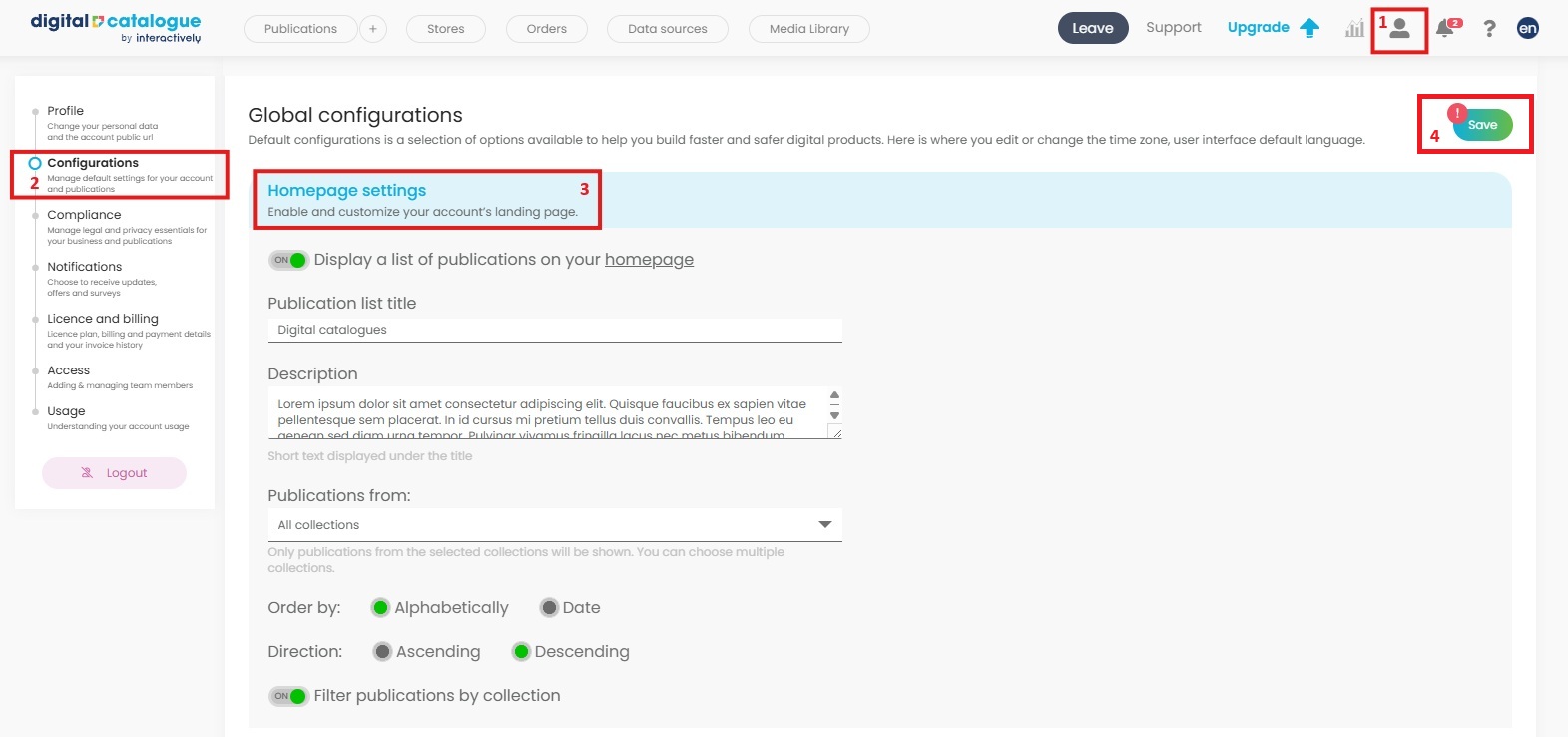
You can add the landing page directly to your website so it works as a fully functional section of your site.
To do this:
- Copy the embed code that was generated for you.
- Paste it into the HTML source code of the page where you want the landing page to appear.
You also have the option to embed only the publication grid without any branding, if you prefer a cleaner, unbranded look.