Build your first Digital Catalogue
Upload an existing PDF file to create your first interactive digital catalogue, to boost your brand and drive sales.
To create your first interactive Digital Catalogue and enhance your brand while driving sales, simply upload your existing PDF file.
If you are new to Digital Catalogue, you will be directed to our homepage where you can easily upload your PDF file and get started.
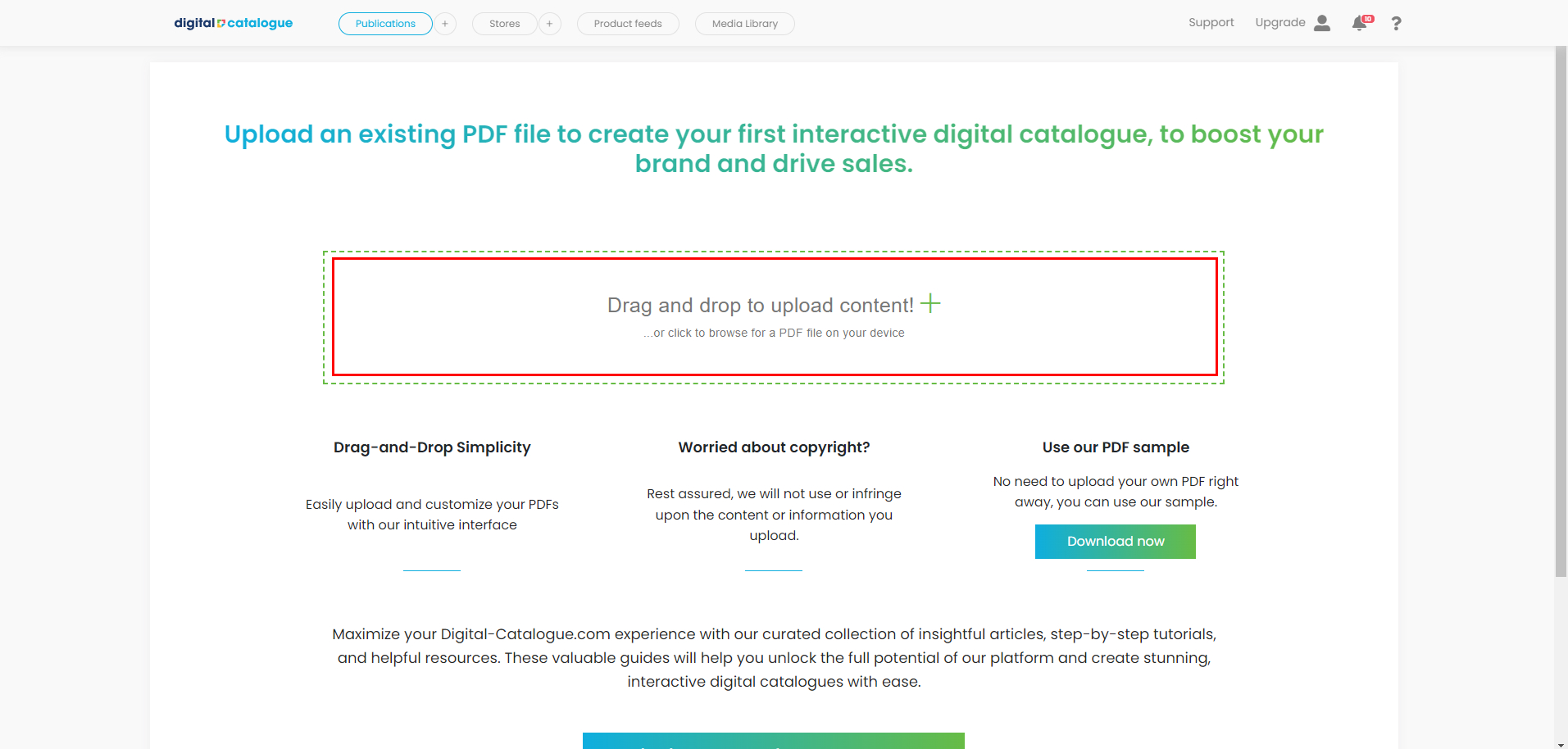
Before uploading your PDF file, we recommend checking out our PDF tutorials available here. These tutorials provide helpful insights on optimizing your PDF for the best results.
1. After uploading your PDF, you will be redirected to the Basic Settings page, where you can begin configuring your Digital Catalogue.
a) SEO, Social Media & Embed Preview
Optimize how your publication appears in search engines, social media, and embedded experiences. Set a custom title, description, canonical URL, and preview image to improve visibility, ensure consistent branding, and control how your content is presented when shared or embedded on other websites.
- Short Title – Define a concise title for your publication.
- Search engine indexing - Use the new toggle to prevent search engines from indexing your publication.
- SEO Long Title (Meta Title) – Set a dedicated meta title for improved search engine visibility.
- Description - A well-crafted title and description enhance user understanding and improve search engine visibility.
- Canonical URL - A canonical URL helps prevent duplicate content issues by telling search engines which version of a page is the preferred or "official" one. It helps search engines focus on the right version of your content and enhances user experience by redirecting the user to the best version of your publication instead of multiple near-identical ones. See our full tutorial here.
- Preview image for sharing - Upload an image to the Media Library and select it as your sharing preview. This image will be displayed when your publication is shared on social media or embedded on other websites. For the best results, use a square or slightly rectangular image. You can also enable Use this image instead of the cover in embedded widgets to display the selected preview image as the cover wherever your publication is embedded, replacing the default publication cover.
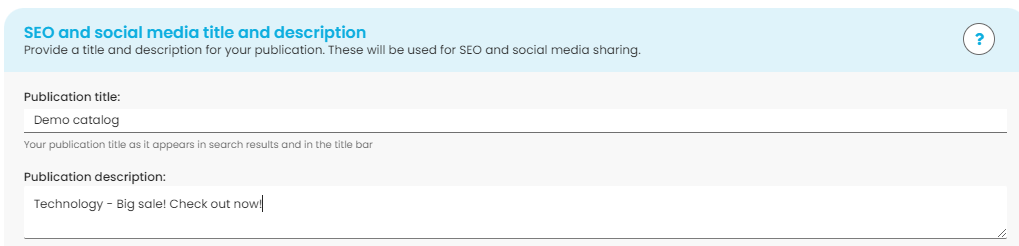
b) Set up a Publication URL. Make your Digital Catalogue URLs SEO friendly by removing the auto generated name at the end of the link. We will take care of necessary redirects. Enter a unique URL slug for your publication to ensure easy access and identification.
Click on Edit and insert your personalized name.

Click Confirm to update the URL.

c) Assign to collection to your Digital Catalogue. The collection feature helps you organize and find your catalogues easily. If you only have one digital publication, you can skip this step. Check out our tutorial for additional details.

d) Make sure you save your changes.
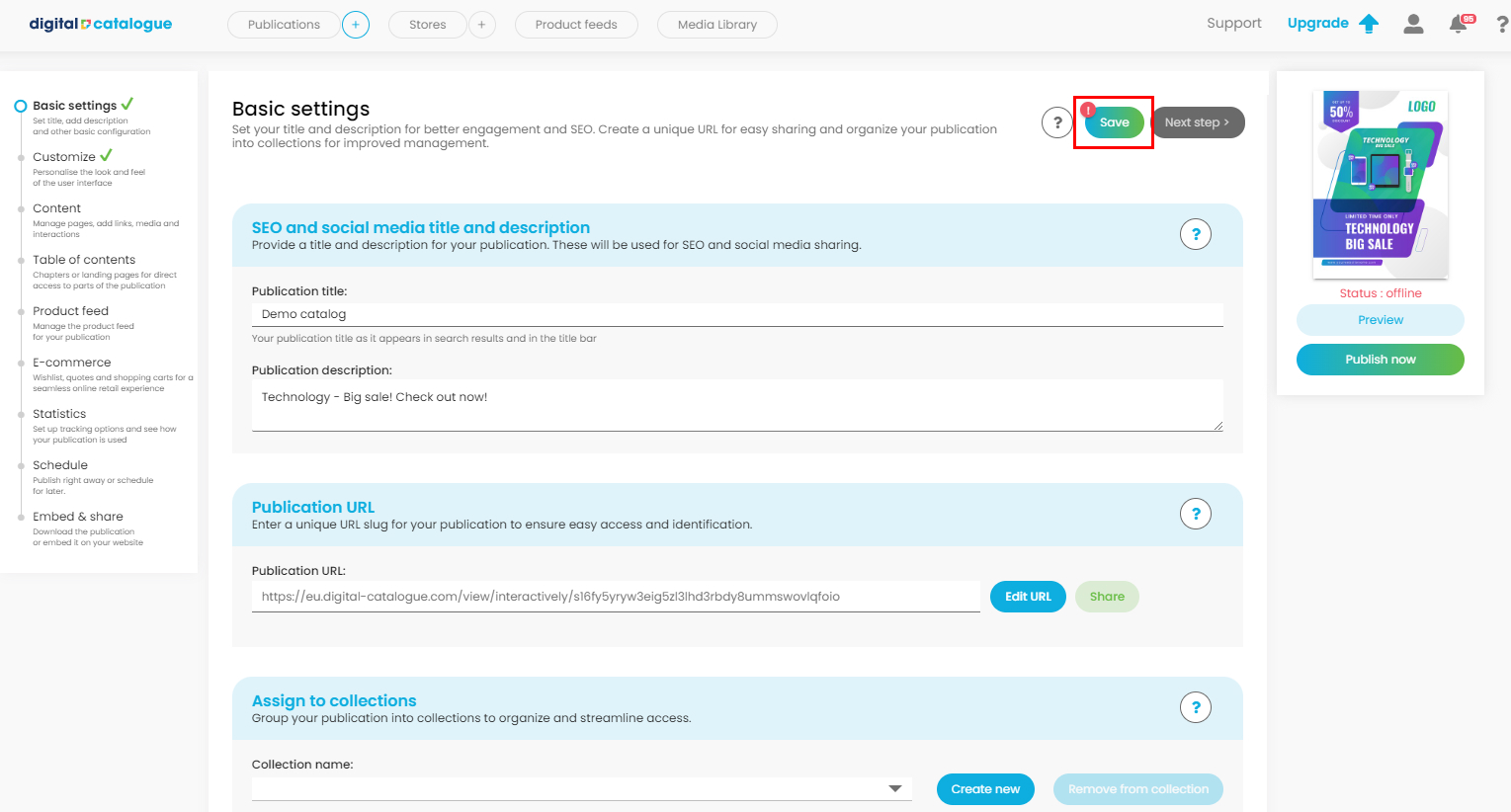
2. In the Access control section you can configure how viewers can access your publication once it is published. You may keep it publicly available or restrict access to authorized users. Click here to see our full totarial for additional details.
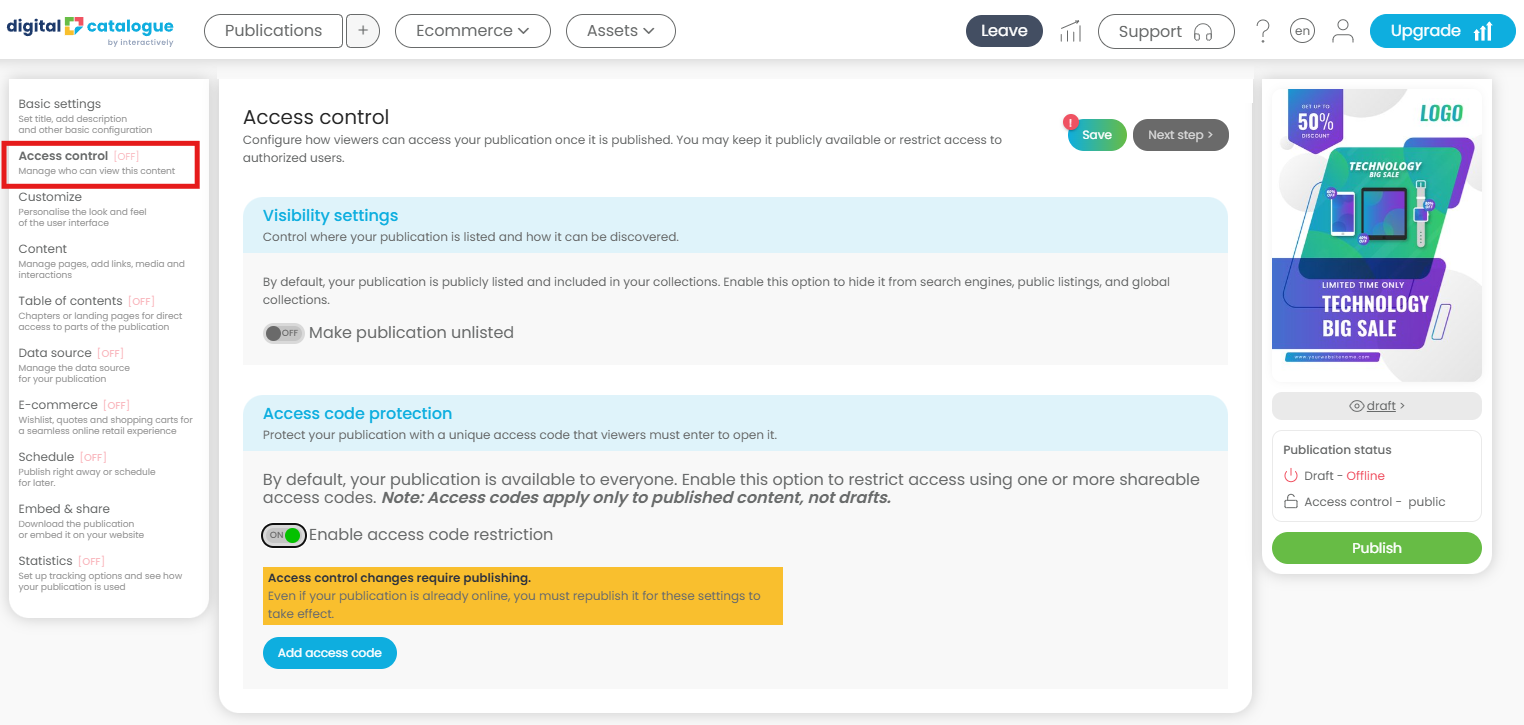
3. Move to the third section from the left-side panel and start customizing your publication interface.
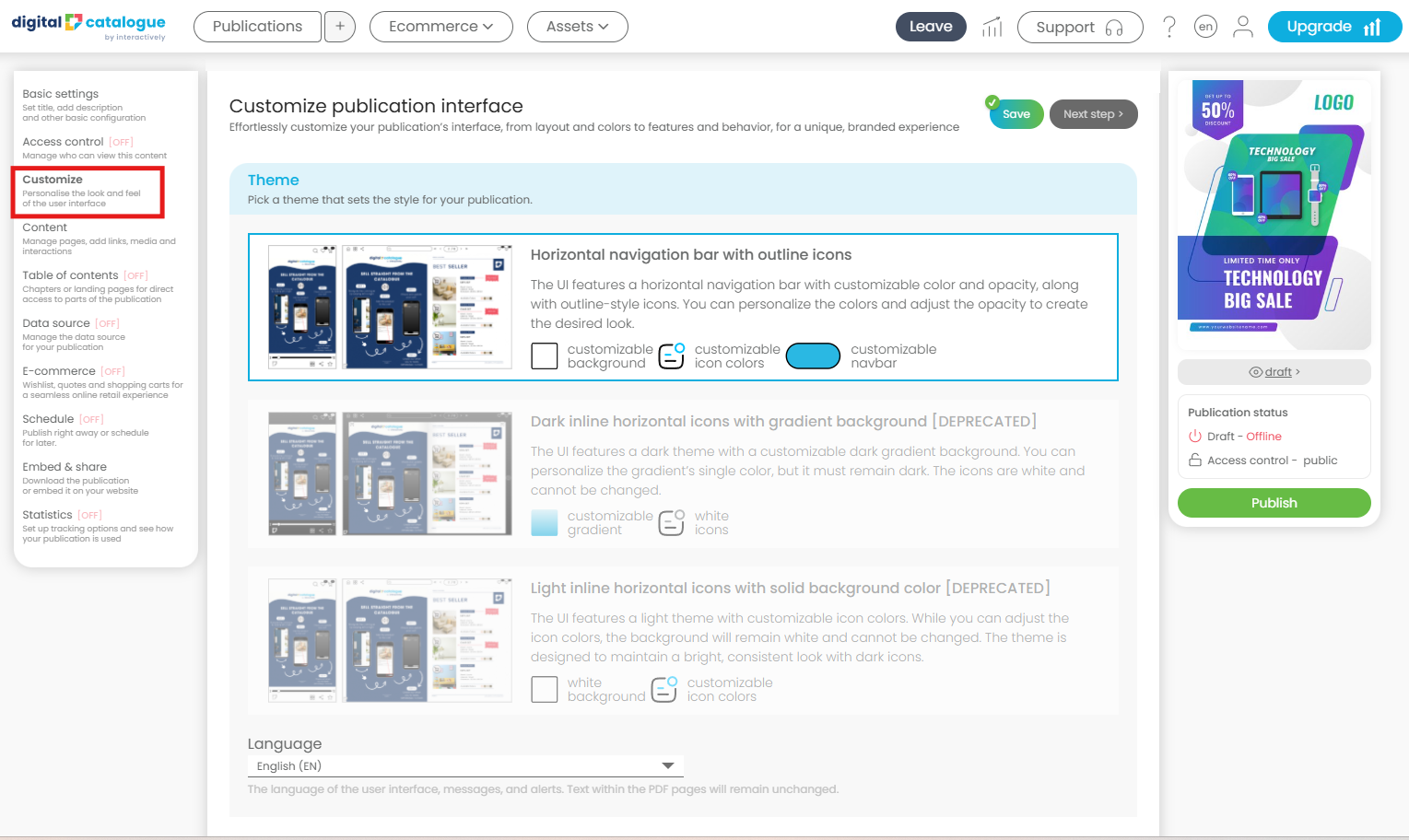
The Look & Feel section lets you customize the visual appearance of your publication to match your brand and create a more engaging reading experience.
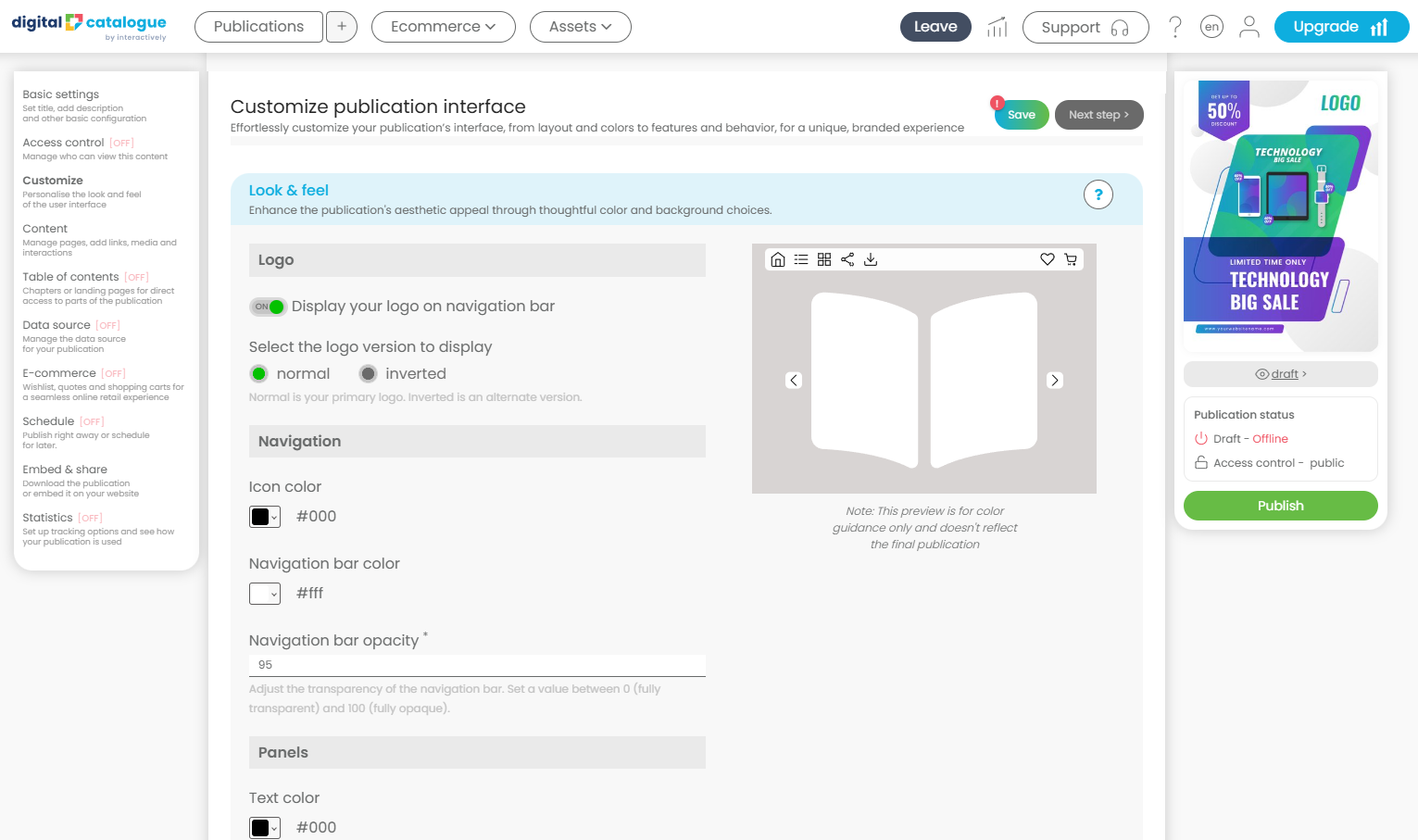
a) Logo
Enable Display logo in the navigation bar to show your brand logo while users browse the publication. For instructions on adding your own logo, see the dedicated Logo section.
b) Navigation Bar & Icons
Customize the colors of the navigation bar and its icons to align with your brand identity and improve visibility.
c) Panels
Choose the colors of your panels, including the background and text. Panels are the pop-up overlays displayed when users open features such as Share, Thumbnails, Table of Contents, and other interactive menus.
d) Background
Personalize the area surrounding your publication by selecting a solid color, a gradient, or a custom background image uploaded to the Media Library. The background refers to the space outside the publication pages that remains visible while users browse the content.
Manage different tools to enhance user interaction in the Interactive features section.
a) Home navigation - Configure the logo or Home button to navigate to the first page, account landing page, or a custom URL.
b) Users can share the interactive publication via social media, WhatsApp, or other communication channels.
c) Search - Users can easily find what they're looking for in your publication. This feature works only if text can be extracted from your uploaded source files or if you manually add product details or import them from a data source.
d) Bookmarks - Users can seamlessly save and recall specific content within the interactive publication, enhancing their overall user experience.
e) Pick & Share - Enables readers to create and share custom publications by selecting their favorite pages and rearranging them into a personalized order. Click here for additional details on how it works.
f) Wishlist - Allows users to save products for later consideration within the interactive publication. This feature is available if you mark the products using the content editor. Please refer to the help page dedicated to this topic for more information.
g) Related publications - Displays additional publications that you consider related to the current one. This feature requires you to group the publications in the same collection and then select it. Once grouped, users can seamlessly navigate between them via a shortcut menu displayed on the publication interface.
h) Download - Allows users to save the PDF version of the publication, page by page or as a complete file.
i) Product Gallery - Displays all products from your digital catalogue in a single grid-style page. This feature requires your publication to be connected to a product data source. When enabled, readers can view all available products at a glance and navigate directly to their details.
The Auto-Detect Products features automatically identifies product codes in your publication and creates interactive hotspots linked to products from your data source.
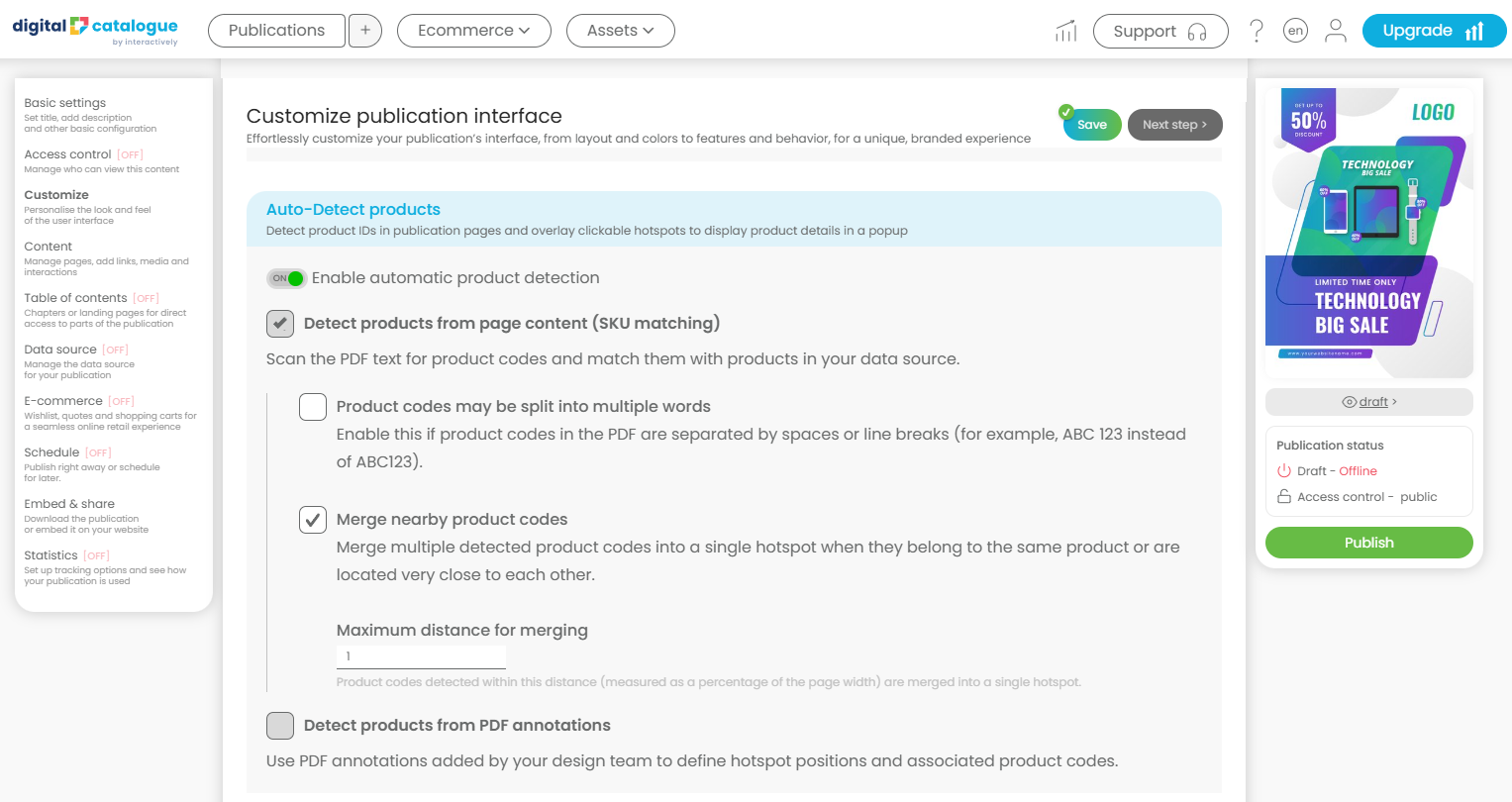
Two options are available:
- Detect products from page content (SKU matching) scans the PDF for product SKUs and matches them with products in the connected data source. For this to work, each product SKU must be present both in the PDF content and in the data source. Once a matching data source is connected, interactive hotspots are automatically created on the relevant pages and populated with the corresponding product information.
- Auto-Generate Hotspots from PDF Annotations: you can now generate hotspots directly from PDF annotations. Simply upload a PDF containing annotations, and the system will automatically extract the information and create hotspots in the corresponding positions on each page.
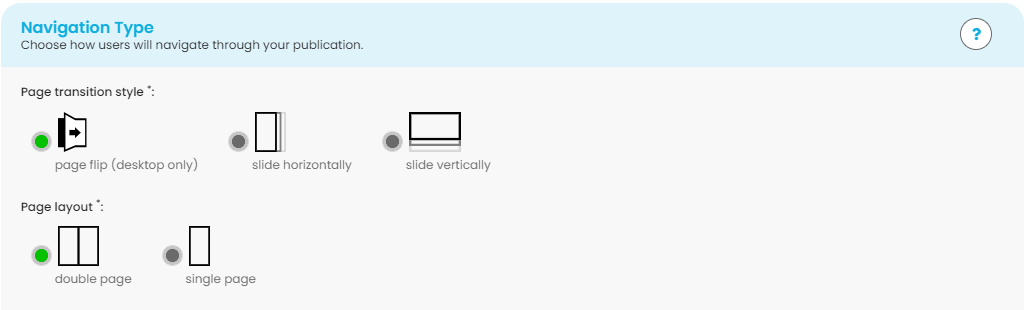
Configure your Navigation type to determine how your clients will navigate through your Digital Catalogue. Choose between flipping or sliding motions, and decide whether pages will be displayed as single pages or spread pages. Experiment with different options to find the navigation style that best complements your catalogue.
Make sure you save your changes.
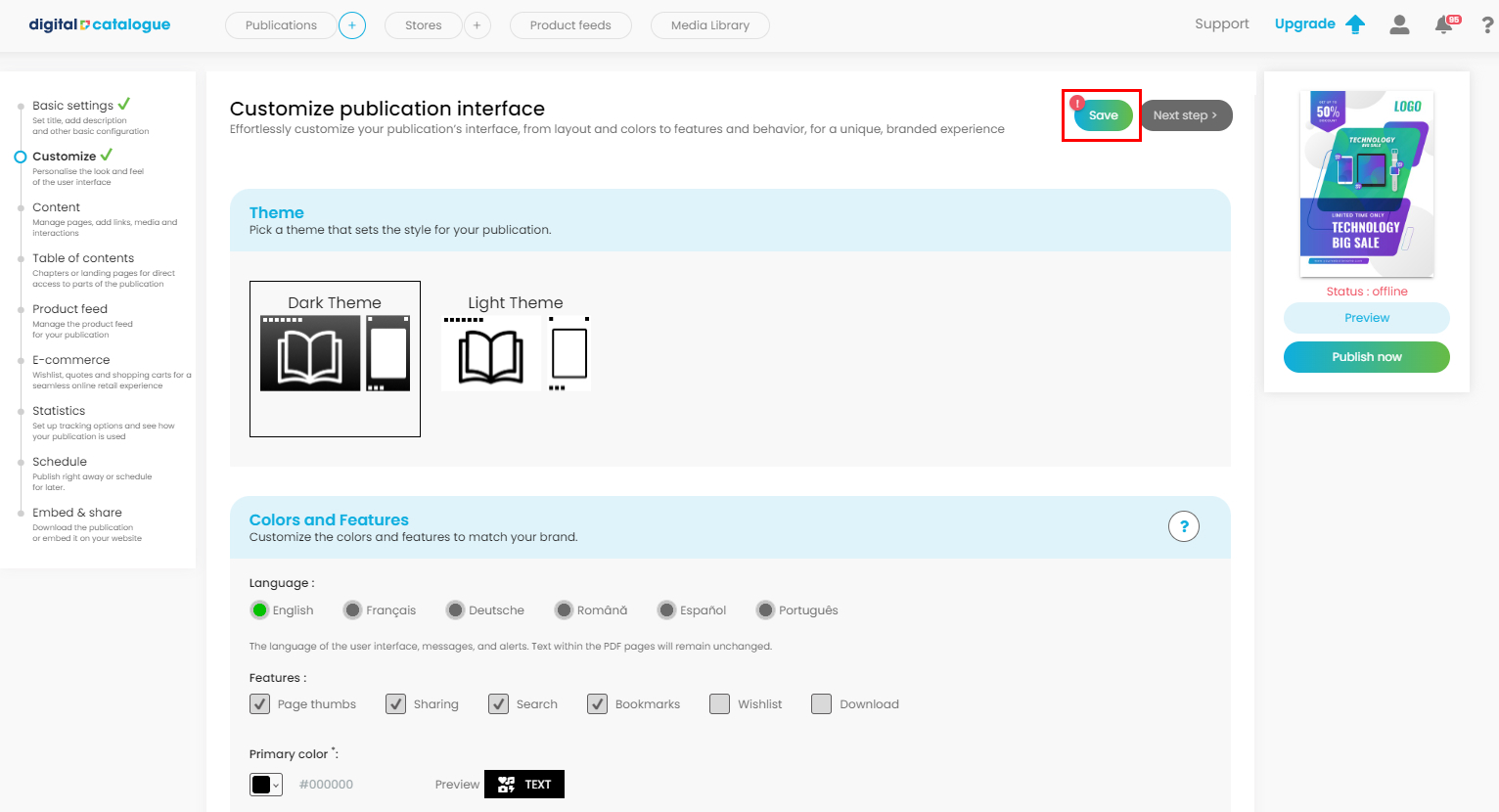
Your publication is now configured and you are ready to take the next steps. Enhance your Digital Catalogue by adding a table of contents, incorporating links and media, and finally, publishing it. For detailed instructions on each of these steps, make sure to visit our tutorials section.
To upload another Digital Catalogue, simply click on the plus icon in the menubar and follow the same steps as before.
